

How to Configure PHP for Subdomains and Additional Domains in DirectAdmin
Choose the PHP version for subdomains and additional domains in DirectAdmin and review the available parameter options.
Choose the PHP version for a subdomain or an additional domain using the DirectAdmin selectors and review the options available in PHP Settings to adjust its parameters.
Before you begin
Check that the subdomain or additional domain has already been created in your account.
Check which PHP version is compatible with that site's application.
Note the current version and values before changing them.
Have an up-to-date backup of the site available before changing its PHP version.
Where to manage each site
Site | DirectAdmin tool |
|---|---|
Subdomain | Account Manager → Subdomain Management. First select the domain it belongs to. |
Additional domain | Account Manager → Domains. Open the name of the domain you want to configure. |
PHP parameters | Account Manager → PHP Settings. Its availability and scope depend on your service options. |
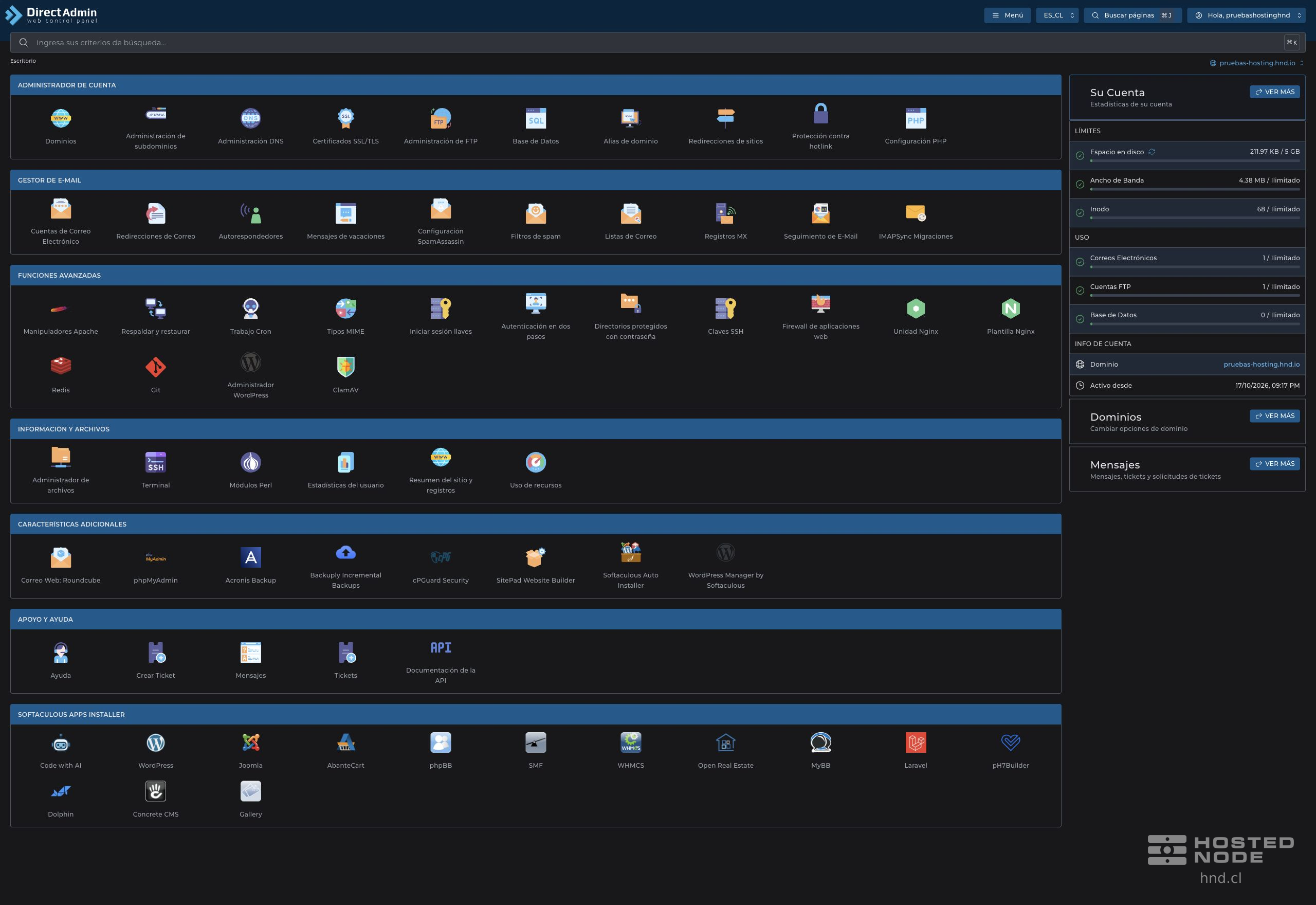
1. Change the PHP version for a subdomain
Select the domain the subdomain belongs to.
Open Account Manager → Subdomain Management.
Locate the subdomain's row and check its full name.
In the PHP Version column, click the edit icon next to the version.

In the Change PHP Version window, choose a version compatible with the subdomain's application and click Save.
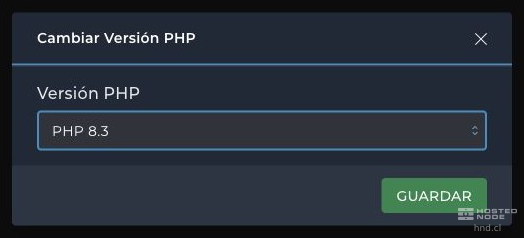
Wait for confirmation and check the new version in the same subdomain row.

2. Change the PHP version for an additional domain
From the dashboard, open Account Manager → Domains.
Click the name of the additional domain you want to configure.
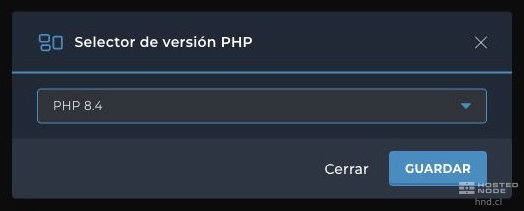
On the Modify Domain page, click PHP Version Selector.
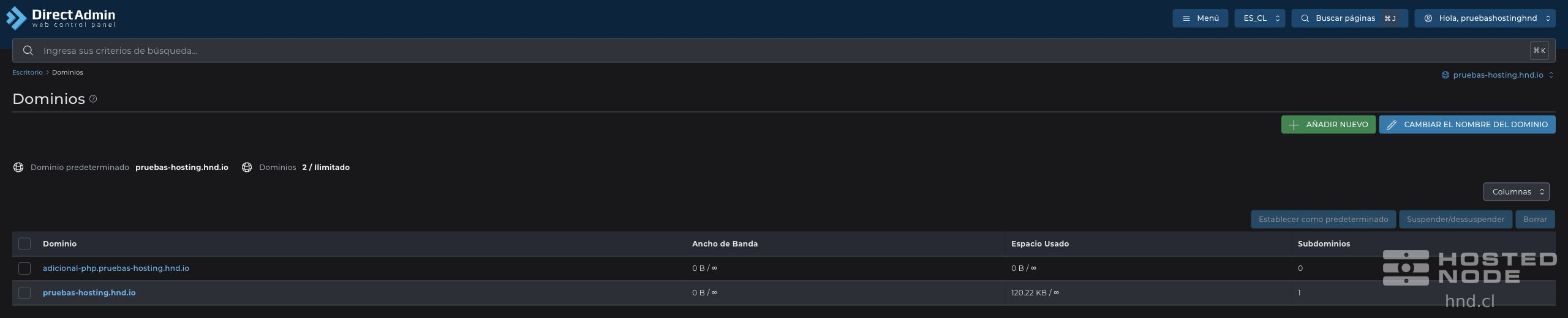
Select a version compatible with that domain's application and click Save within the selector. Wait for confirmation before closing the window.
3. Review the parameters in PHP Settings
The selectors above change the PHP version. To adjust memory, upload, or time limits, select the domain and open Account Manager → PHP Settings.
Parameter | What it controls |
|---|---|
| Maximum memory a PHP script can use. |
| Maximum total size of a POST request, including files and other form fields. |
| Maximum execution time for a PHP script, expressed in seconds. |
| Maximum size of each file uploaded through PHP. |
If the tool is available for the selected domain, use Add New Custom Value: choose the parameter under Setting, set its Value and click Add. To edit an existing parameter, change its value in the table and click Save.
If you see Only the default domain can control PHP settings, that screen does not allow you to assign independent parameters to the additional domain. The subdomain's version selector does not change those limits either.
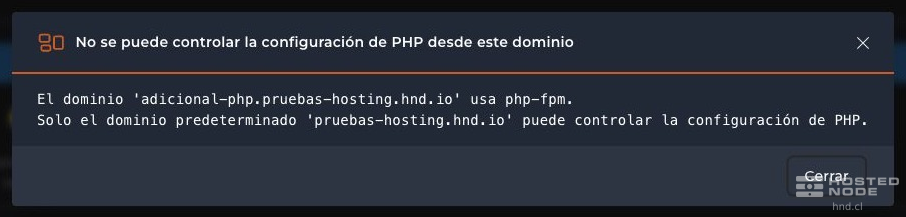
In that case, parameters are managed from the default domain within the scope allowed by the service. If you need specific values for a site and the panel does not offer that option, contact support before changing the account's parameters.
4. Check the result
For the subdomain, check the PHP Version column in its own row.
For the additional domain, reopen PHP Version Selector and check the saved selection.
If you changed parameters, wait up to 3 minutes before checking that they have taken effect.
Open the relevant site and check its pages, forms, and usual features.
The version shown in the active domain's general information does not replace checking the subdomain's row. Always check the site you just configured.
If you need to return to the previous version
Open the same selector for the subdomain or additional domain, choose the version you noted before the change, and click Save. Then check that the site works correctly.
Common problems
Situation | What to check |
|---|---|
The subdomain does not appear | Check that you have selected the domain it belongs to and reopen Subdomain Management. |
The version you need does not appear | The list depends on the versions available with your service. Contact support to check availability. |
The version does not change after saving | Check the site's name, wait for the panel's confirmation, and reopen its selector. |
The parameters do not change immediately | Wait up to 3 minutes. Also check whether PHP Settings is available for that domain or displays a notice about its scope. |