

How to Create an FTP Account in DirectAdmin
Create an FTP account in DirectAdmin, choose the directory it will have access to, and keep its full username.
An additional FTP account lets you grant access to files in the directory you choose. The selected location determines which files that account can manage.
Before you begin
Check the active domain, the FTP account limit, and the folder you need to grant access to. Prepare a unique password for this user.
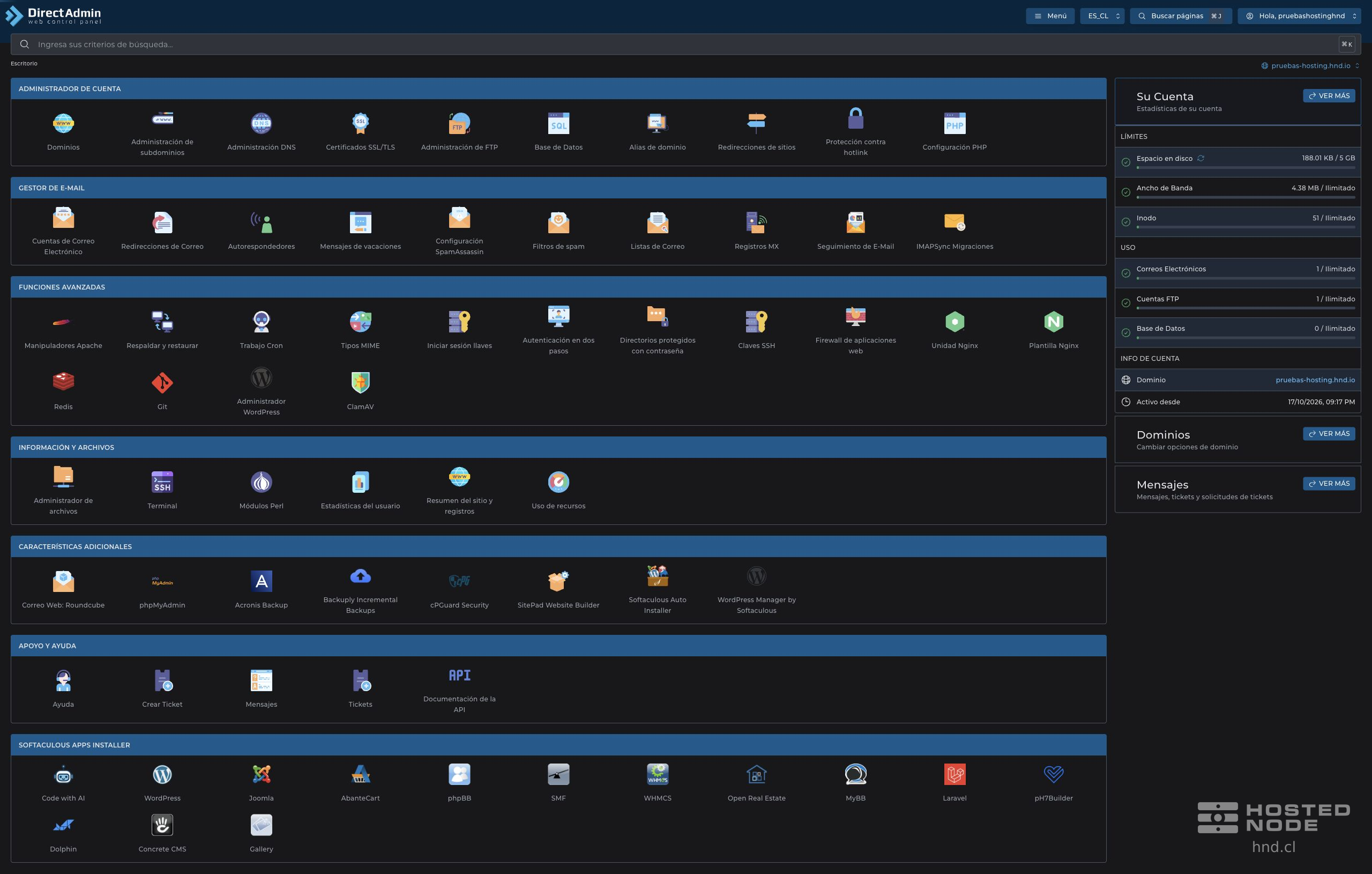
Open Account Manager → FTP Management and click Create FTP Account.
1. Enter the username and password
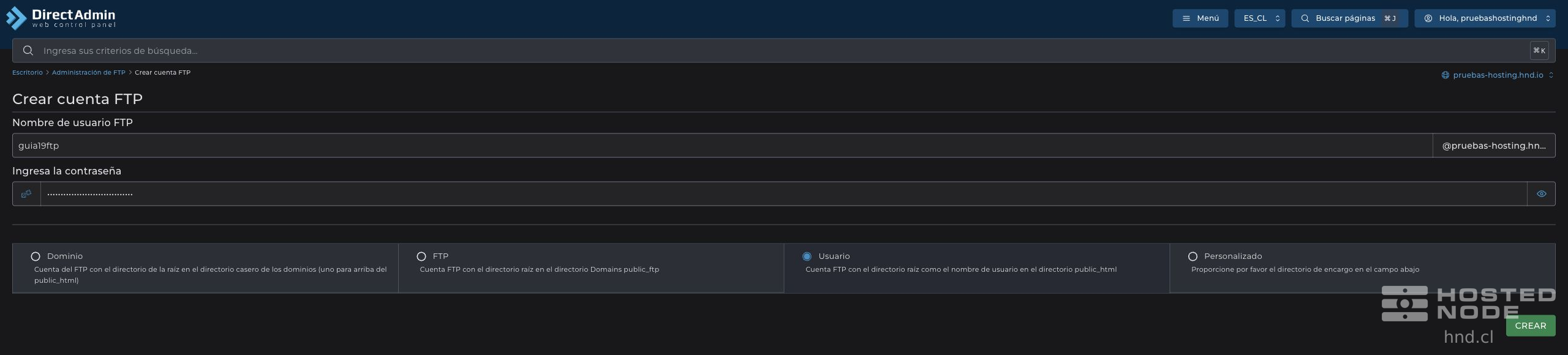
In FTP Username, enter the part that precedes the domain. The panel shows the suffix it will add.
In Enter Password, use a long, unique password. You can use the generator.
Store the password privately and keep it hidden when sharing your screen.
2. Choose the access directory
Domain: sets the root to the domain directory, one level above
public_html.FTP: uses the directory
public_ftpof the domain.User: uses a folder named after the user within
public_html.Custom: lets you specify the supported path you need in the field provided by the panel.
For an account limited to an individual site folder, select User. In the example, guia19ftp uses a folder with that name within the public_html of the domain. Choose the location based on the files it needs to manage; the FTP username and password alone do not restrict the directory.
3. Create and check the account
Review the domain, username, and directory type.
Click Create only once and wait for FTP Account Created.
Check the full login name and the Path in the summary. Save the credentials before closing it.
Return to FTP Management and verify that the account appears.
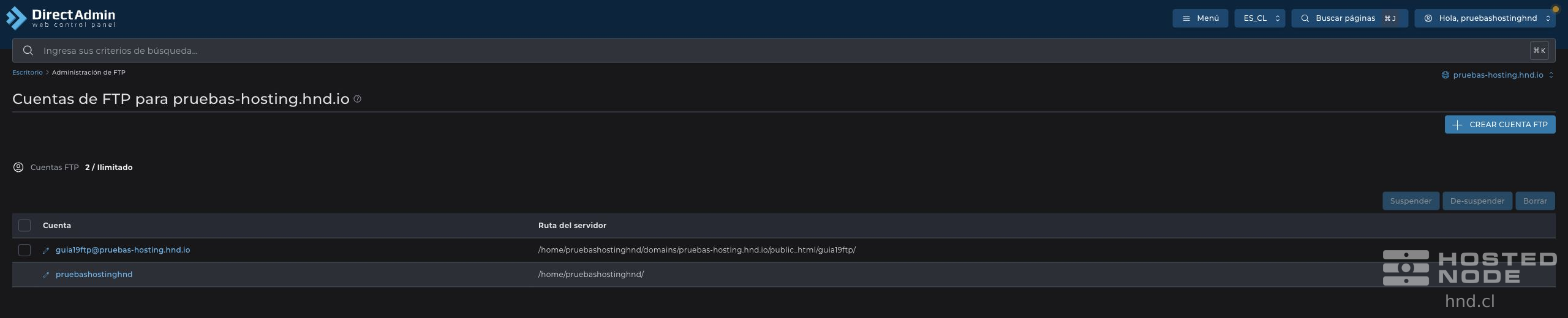
Use the exact name shown in the summary, including the domain where applicable. Do not confuse this password with the panel password or assume that an FTP account adds access to DirectAdmin or SSH.
If the form rejects account creation, check the message, the account limit, and whether the user already exists. If the account was created but you do not see the expected files when you connect, check the assigned path.