

How to Set Up a Vacation Message in DirectAdmin
Schedule a vacation reply for a mailbox, choose dates and times, and check the saved period in DirectAdmin.
Vacation messages reply automatically during a period of absence. They are configured for an existing email account and have a start and end date and time.
Before you begin
Check the active domain, that the mailbox exists, and that the hosting service receives its email. Decide when your absence begins and ends, and check the time used by the panel.
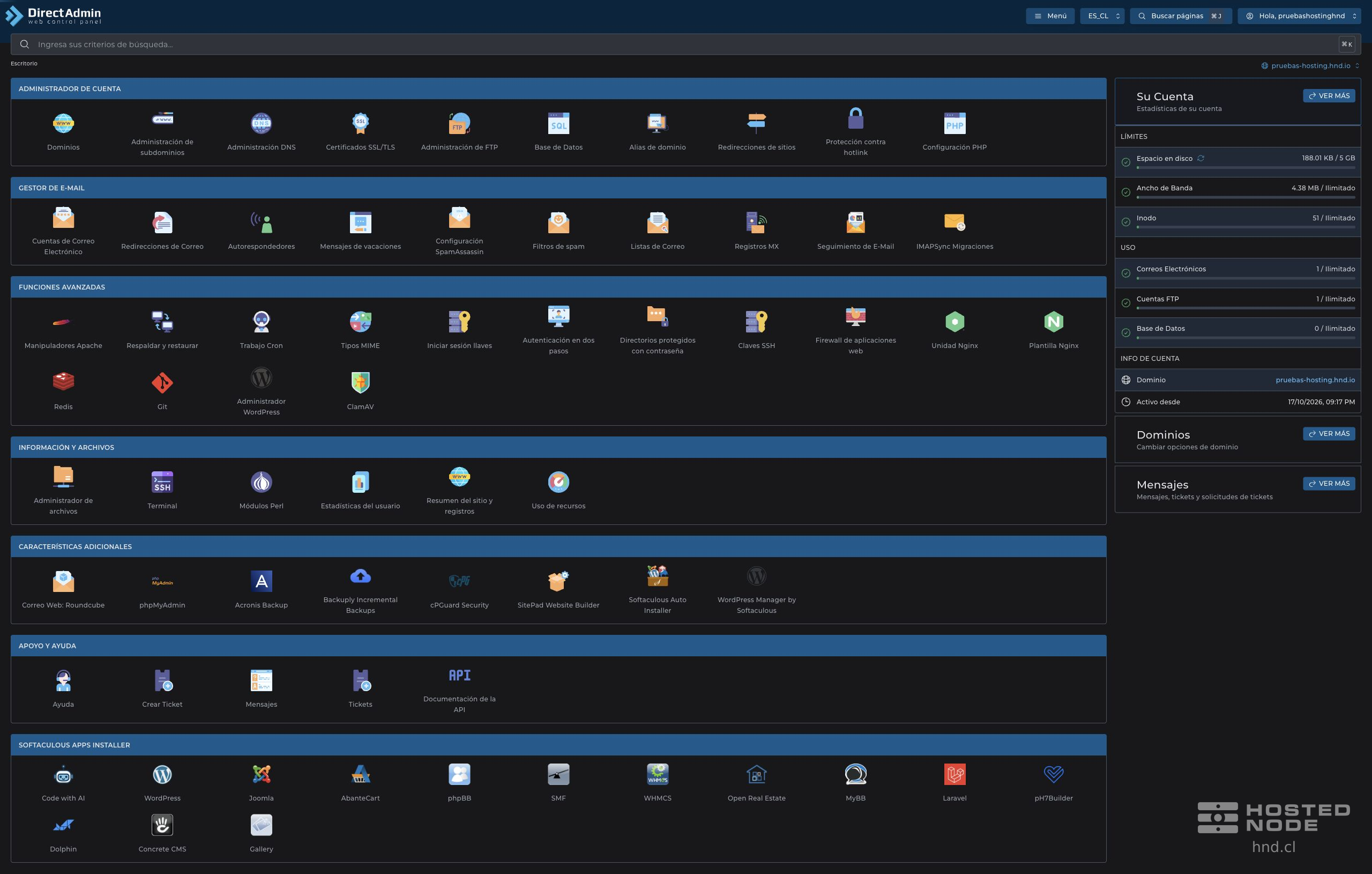
On the dashboard, open E-mail Manager → Vacation Messages and click Set Vacation Message.
1. Choose the account and period
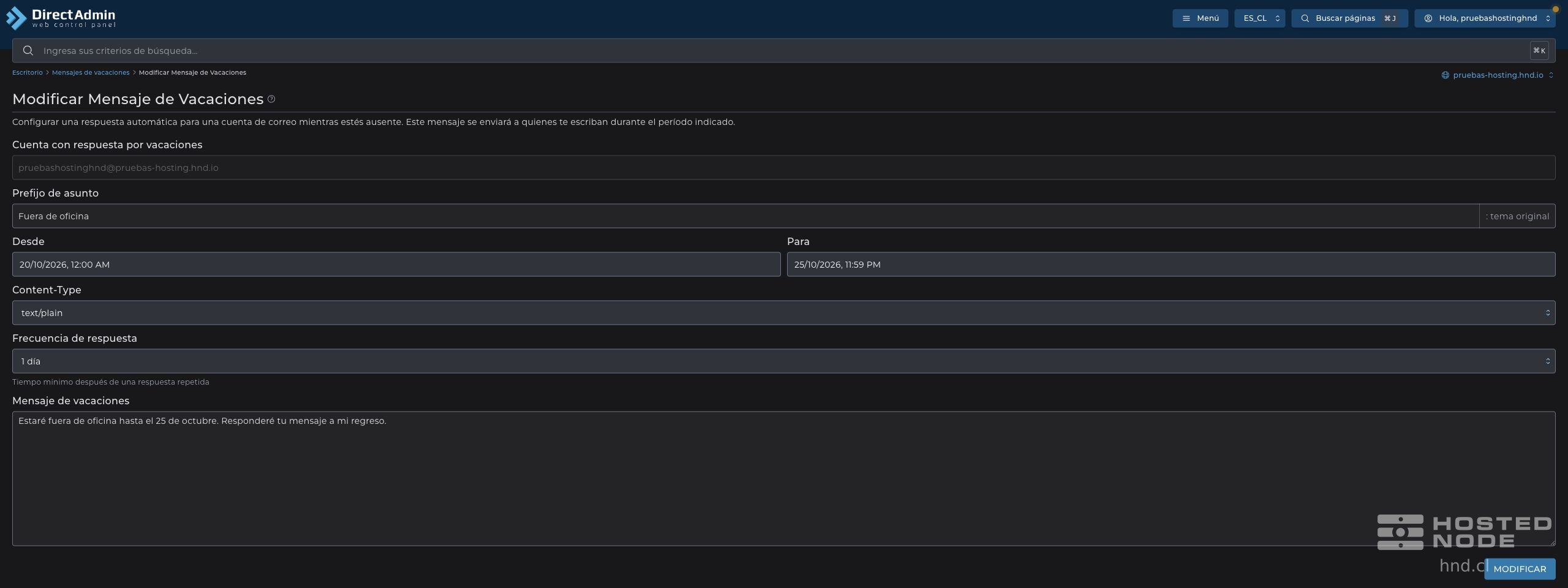
In Vacation Account, select the correct address.
Enter a Subject Prefix, such as
Fuera de oficina.Open the calendar for From and select the start day and time.
Open the calendar for To and select the end day and time.
Check both values and wait for any validation message to disappear.
Use the calendar and time picker controls. Simply seeing text entered in the field is not enough: check the saved dates afterward. If you see The end date cannot be earlier than the start date, correct the end date before continuing.
2. Write and save the message
In Content-Type, use
text/plainfor a plain text message.In Reply Frequency, choose the minimum interval between repeated replies to the same sender.
Write the Vacation Message. Include your return date and, if appropriate, an authorized contact method.
Click Create and wait for confirmation. If you are editing an existing reply, the button is called Modify.
One example is: “I will be out of the office until October 25. I will reply to your message when I return.” Choose the dates that match your absence and avoid revealing unnecessary private information.
3. Check the saved dates

In the table, review Vacation Account, From and To, including the times. If any value does not match, click Modify, correct it using the calendar, and save again.
The reply only applies during the specified period. To test it, use a sender account you control while the period is active, and keep the selected repeat interval in mind. A test before the start should not be interpreted as a failure.
If you return early or the dates change, modify the schedule. Delete removes the vacation message; it does not delete the mailbox.