

How to Modify MX Records to Use Google Workspace in DirectAdmin
Configure Google Workspace MX records in DirectAdmin and adjust local delivery so that Google handles your domain’s email.
MX records specify where a domain receives email. To use Google as your provider, you need a Google Workspace account set up for that domain; a personal Gmail account does not replace that configuration.
Before you begin
Check that the domain and its recipients are set up in Google Workspace and that you have access to its Gmail settings.
Make a note of the current MX records and local delivery status before changing them.
Confirm that the zone you are editing in DirectAdmin is the one used by the domain's authoritative DNS servers. If DNS is managed by another provider, these local changes will not be published there.
Coordinate the change: while caches are updating, some senders may still use the previous provider.
1. Open MX Records
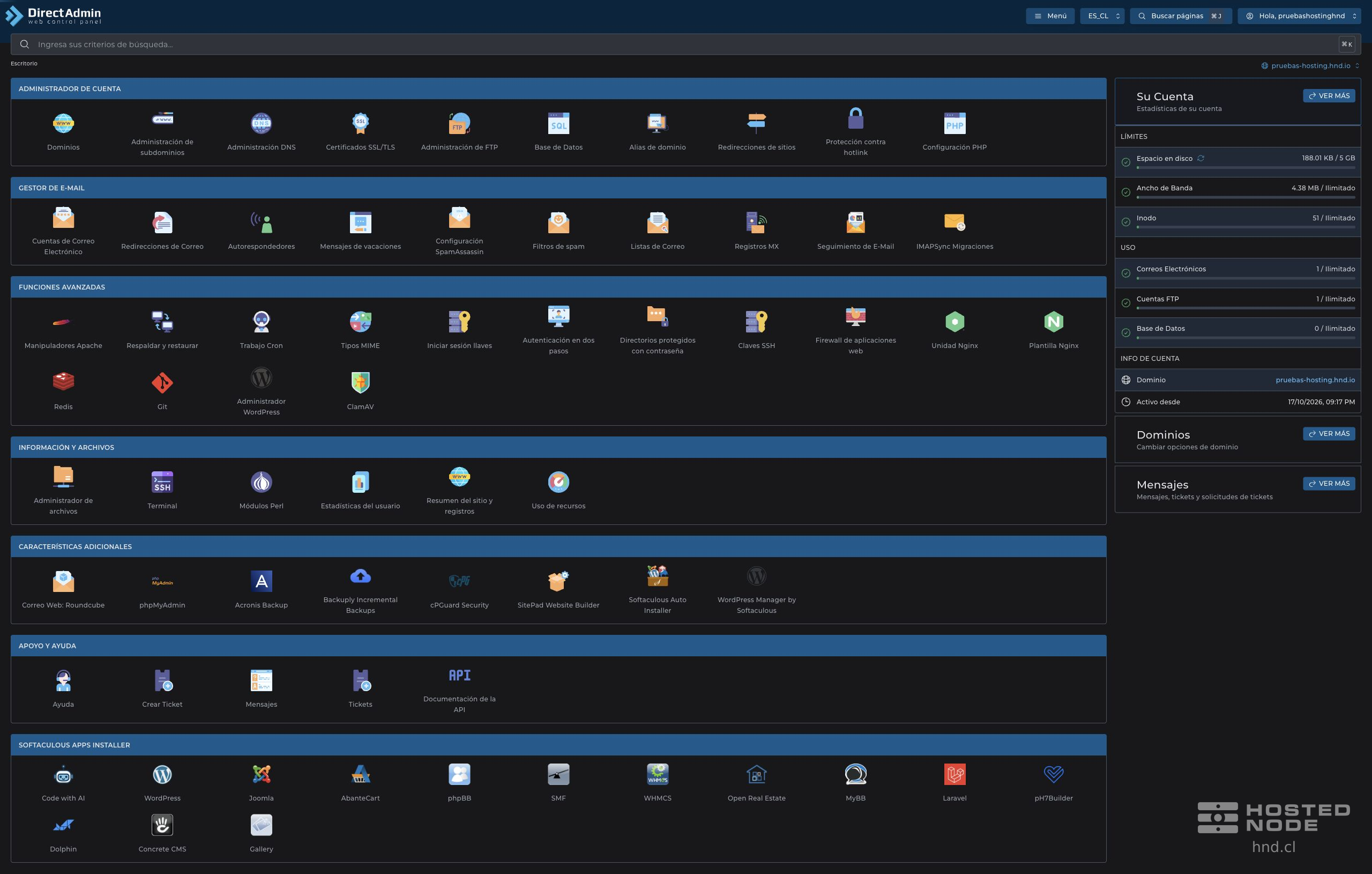
Select the correct domain and open E-mail Manager → MX Records from the dashboard.
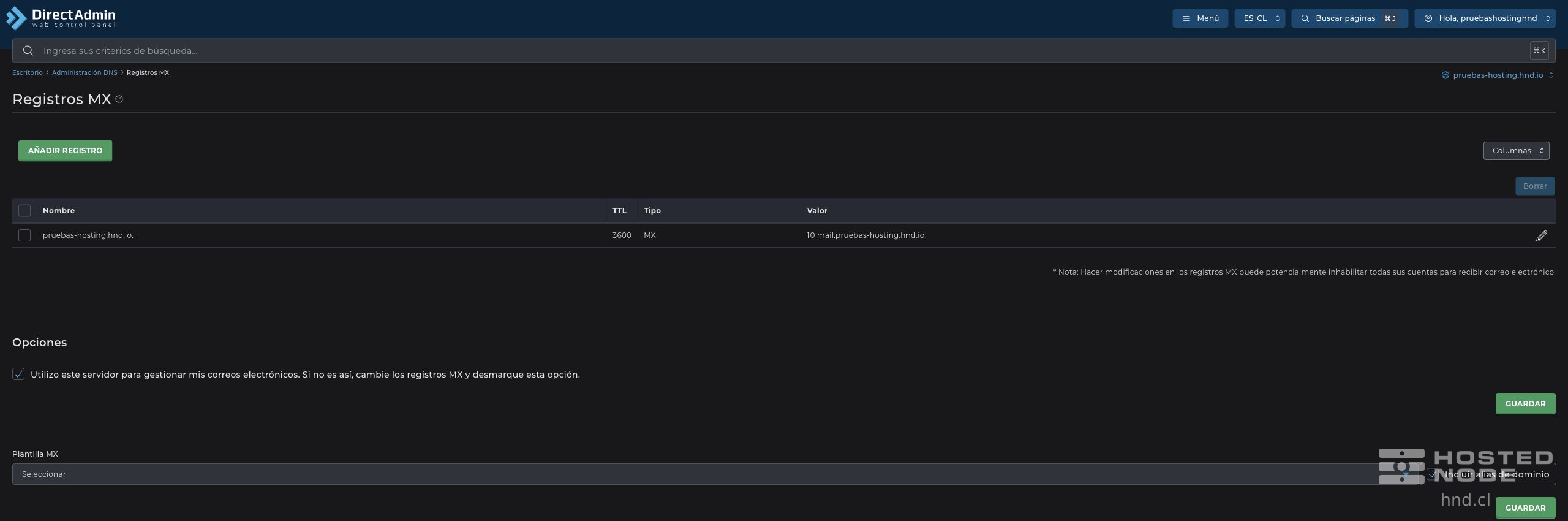
The table shows Name, TTL, Type and Value. Below it is the option Use this server to handle my e-mails.
2. Configure the MX record specified by Google
For the current Google Workspace configuration, the destination is smtp.google.com with priority 1. If your organization already uses the older MX records beginning with ASPMX and they work, do not change them without first reviewing what its Google configuration requires.
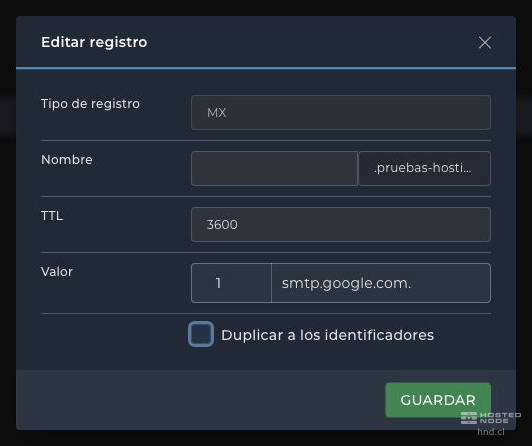
If you are replacing a single existing MX record, click Edit in its row. If you need to create one, use Add Record and the MX type.
Use the root domain as the Name. In the form shown in the image, the domain suffix is already added, and the field is left empty for that root domain.
Keep the appropriate TTL and enter priority
1and destinationsmtp.google.com.. The trailing dot indicates a fully qualified name.Review Duplicate to pointers: uncheck it if the change applies only to the current domain.
Click Save and check that the table shows
1 smtp.google.com..
Remove the remaining MX records from the previous provider when you are ready for Google to receive all email for the domain. Do not leave a mix of providers without a planned coexistence configuration. The panel offers a Google Suite MX template; review its values before using it, as they may correspond to the older setup.
3. Save remote delivery settings
Under Options, uncheck Use this server to handle my e-mails.
Click the Save button for that option and wait for Option saved.
Open MX Records again to check both the destination and the unchecked box.
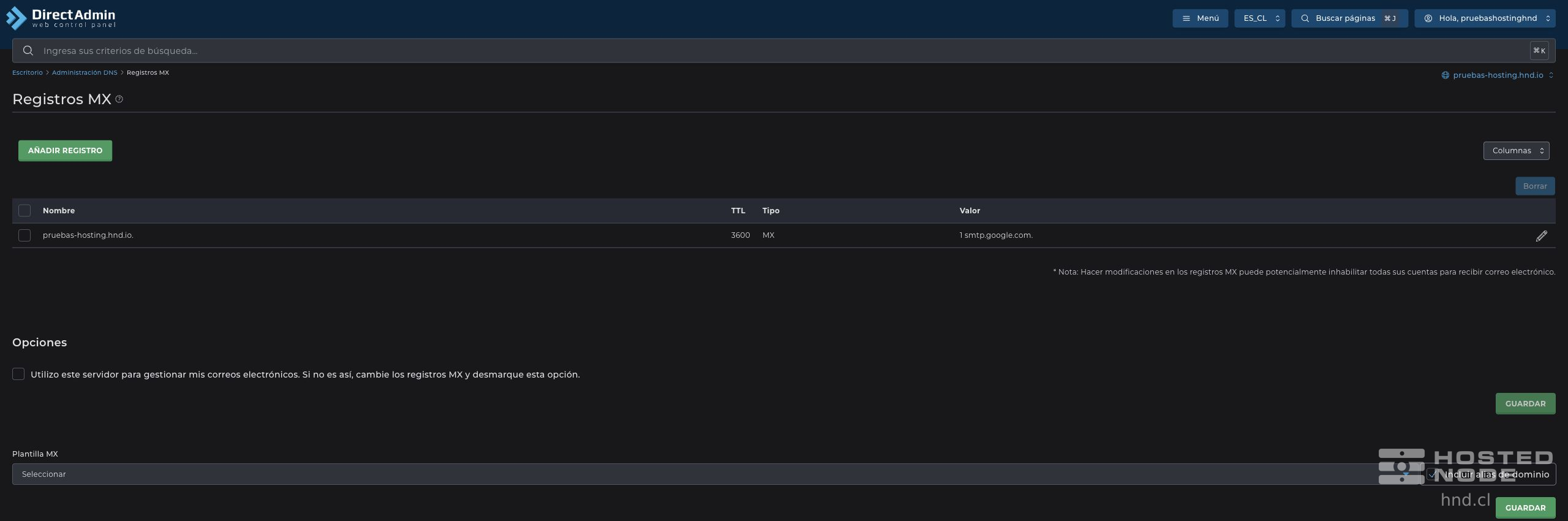
Saving the record and saving the local delivery option are separate actions. When using Google as your provider, the hosting server must recognize that the domain's email is handled remotely.
4. Check email reception
Complete Gmail activation in Google Workspace. MX changes can take up to 72 hours to be recognized. Then check email reception and sending with the recipients you have set up.
Changing MX records does not migrate old messages or create Google mailboxes. If email reception fails, review the authoritative DNS zone, the saved values, the local delivery status, and domain activation in Google.