DocumentationWhat payment methods does Hostednode accept?What are Hostednode's billing cycles?When is the monthly renewal charge generated?When are services suspended for non-payment?When is a service deleted for non-payment?What should you do if a payment method is unavailable?Are all services subject to VAT?Do you issue receipts or invoices?How to create a customer account on HostednodeDo you accept cryptocurrency payments?How to Access DirectAdmin and Explore the Panel’s Main FeaturesHow to Configure PHP for Subdomains and Additional Domains in DirectAdminHow to change the PHP version and settings in DirectAdminHow to Create an Email Account in DirectAdminHow to use ClamAV antivirus from DirectAdminHow to Enable and Use Redis from DirectAdminHow to Add a Domain Alias and Use It for Email in DirectAdminHow to Add an Additional Domain in DirectAdminHow to Add an Additional User to an Existing Database in DirectAdminHow to configure an autoresponder in DirectAdminHow to Set Up a Vacation Message in DirectAdminHow to Create a Subdomain in DirectAdminHow to Create a Cron Job in DirectAdminHow to Create a Database and Associate Its User in DirectAdminHow to Create an FTP Account in DirectAdminHow to Create a Mailing List in DirectAdminHow to Create an Email Forwarder in DirectAdminHow to Create a Site Redirect in DirectAdminHow to Install WordPress with Softaculous WordPress Management in DirectAdminHow to Install WordPress with the DirectAdmin WordPress ManagerHow to Modify MX Records to Use Google Workspace in DirectAdminHow to review the web application firewall and create a rule exception in DirectAdminHow to Check Account Resource Usage in DirectAdmin
TUTORIAL

How to Create a Site Redirect in DirectAdmin

Create a web redirect in DirectAdmin, choose a local path and a destination, and verify the saved redirect type and URL.

The Site Redirection tool lets you send visits from a path on your domain to another URL. The browser receives a redirect response and opens the specified destination.

Before you begin

Select the domain from which the redirect will be made. Identify the path that will change and check that the destination URL exists and does not redirect back to the source.

On the dashboard, open Account Manager → Site Redirection and click Create New Redirect.
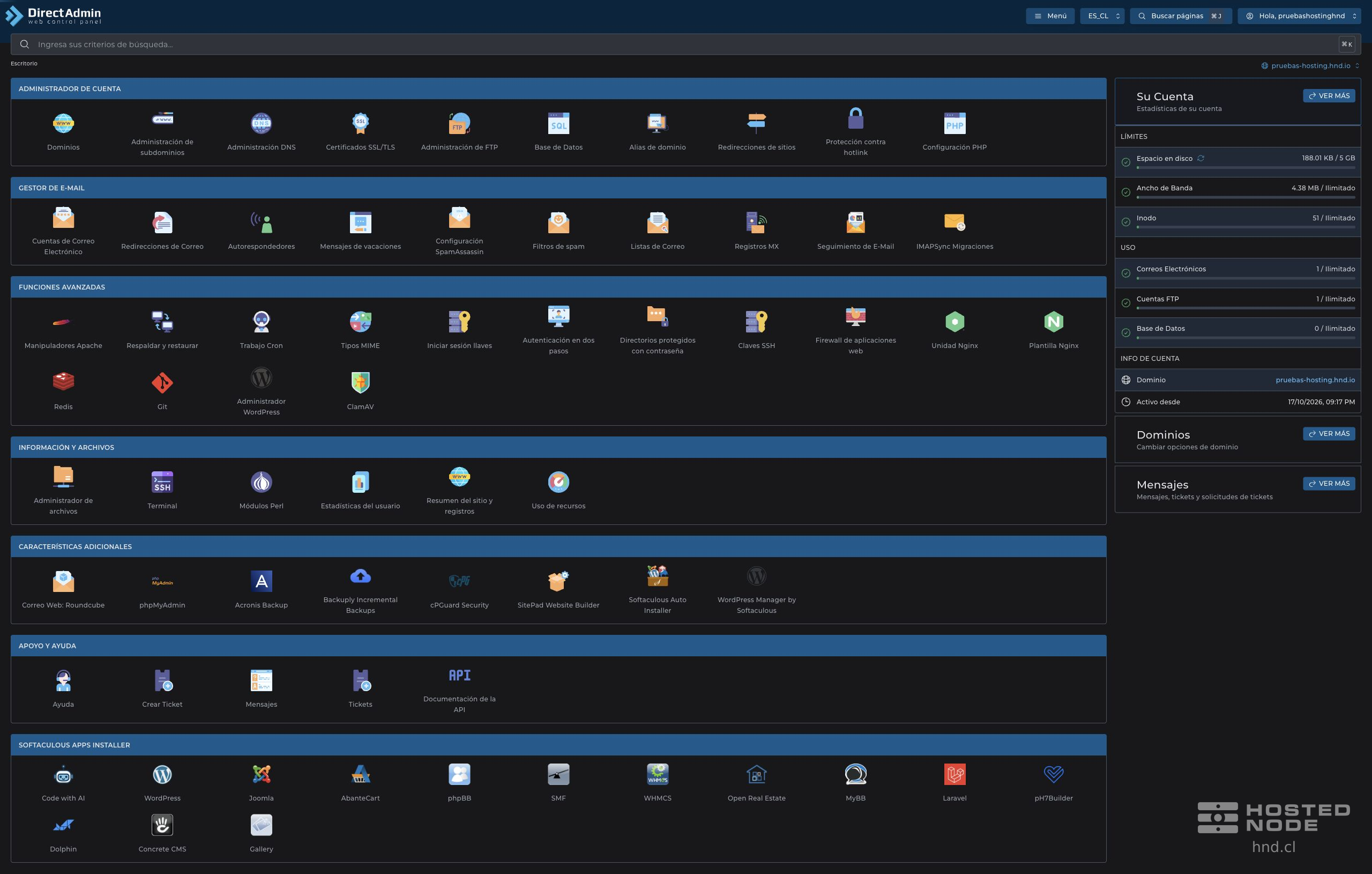
DirectAdmin dashboard with tool groups and account statistics.

1. Enter the source, type, and destination

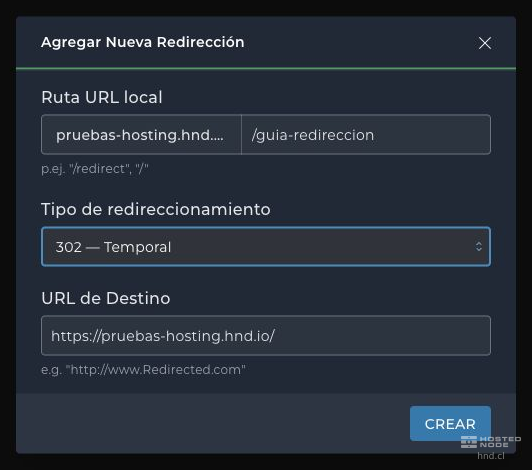
  1. In Local URL Path, enter the path on the current domain. For example, /promocion. Do not enter the full domain in this field.

  2. In Redirect Type, select the behavior you need.

  3. In Destination URL, enter the full URL with https:// or the destination's valid protocol.

  4. Review the details and click Create.

Form with a local path, a 302 redirect, and a destination URL.

301 — Permanent indicates a permanent move and may be cached. 302 — Temporary indicates a temporary change. The panel also offers 303 — See Other, which directs the next request to the destination using GET and is used in specific application workflows.

2. Check the redirect

Redirect table with local path, type, and destination URL.

Wait for Redirect Added and check the columns Local URL Path, Type and Redirect URL. Open the source URL in a private window and confirm that the browser ends up at the correct destination.

If it does not work, check the active domain, the path, and the destination protocol. Also check whether a previous redirect remains in the browser cache. If the browser reports too many redirects, check whether the destination sends the visit back to the source.

To remove a redirect, select it in this table and use Delete. Check that you have selected the correct path, especially if the domain has multiple rules.