

How to Enable and Use Redis from DirectAdmin
Enable Redis from DirectAdmin, identify your account's socket, and understand how to use it in a compatible application.
Redis allows a compatible application to store data in memory. Enabling it in DirectAdmin activates the service for the account; the application must be configured to use it.
Before you begin
Check that your plan includes Redis and that your application supports a UNIX socket connection. Identify where you can specify the connection and database number. Enabling the service alone does not change the cache for all your sites.
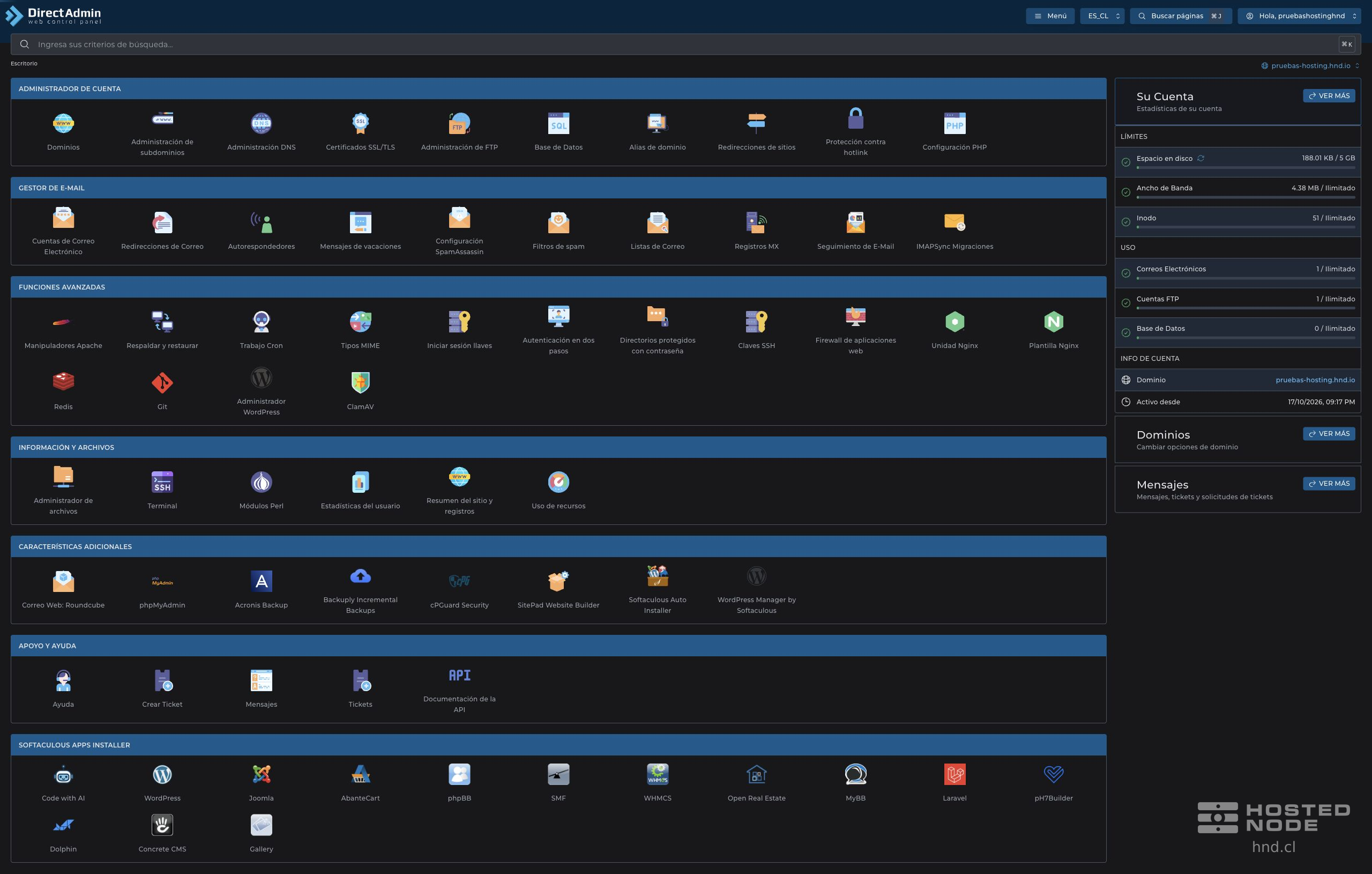
On the dashboard, open Advanced Features → Redis.
1. Enable Redis
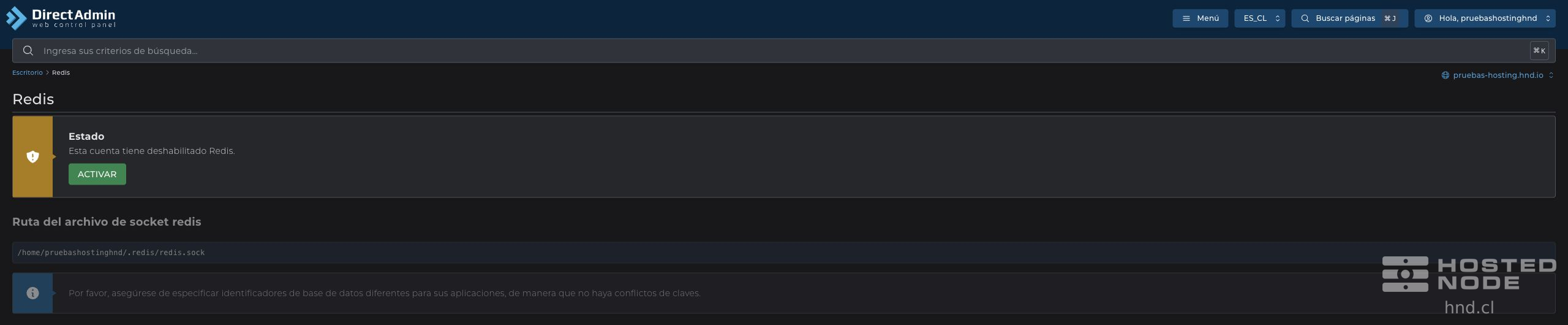
Review the message Redis is disabled for this account.
Click Enable.
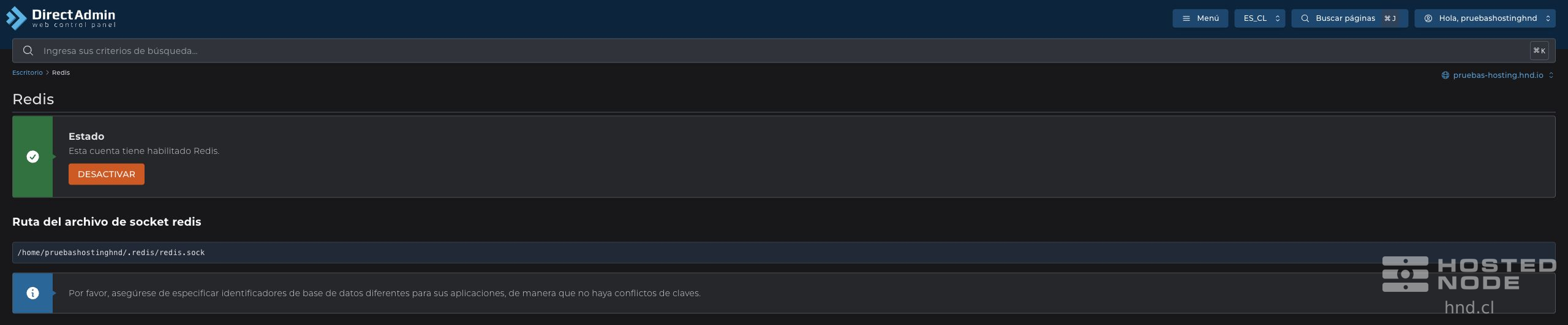
Wait for confirmation and check that the status changes to Redis is enabled for this account.
If Redis is already enabled, proceed to its connection details.
2. Use the details in a compatible application
Copy the Redis socket file path shown in your own account. The images show /home/pruebashostinghnd/.redis/redis.sock; the username and path may differ on another hosting service.
Open the Redis connection options available in your application.
Select the connection via UNIX socket when available and enter the path copied from the panel. Do not enter it as if it were an IP address.
Assign a different database identifier to each application and save that application's settings.
Check the connection or cache status within the application itself and perform a routine site operation.
DirectAdmin states that applications must use different database identifiers to avoid key conflicts. This separation helps prevent collisions; the applications still share the account's service and resources.
3. Check the status and avoid interruptions
Open Redis again to check that it remains enabled. If an application cannot connect, check that it uses the correct account's socket and a compatible connection type. Do not copy a host, port, or password from another service if the panel does not provide them.
The Disable button makes Redis unavailable for the account. Before using it, remove or disable the Redis connection in applications that depend on it to avoid errors.