

How to Create a Cron Job in DirectAdmin
Schedule a Cron job in DirectAdmin, define its five schedule fields, and verify the saved command and schedule.
A cron job runs a command at the frequency you specify. DirectAdmin provides a form for setting the schedule and managing the account's tasks.
Before you begin
Identify the command your application needs and its recommended frequency. An incorrect command can fail even if the schedule is valid. Also check the time displayed on the form.
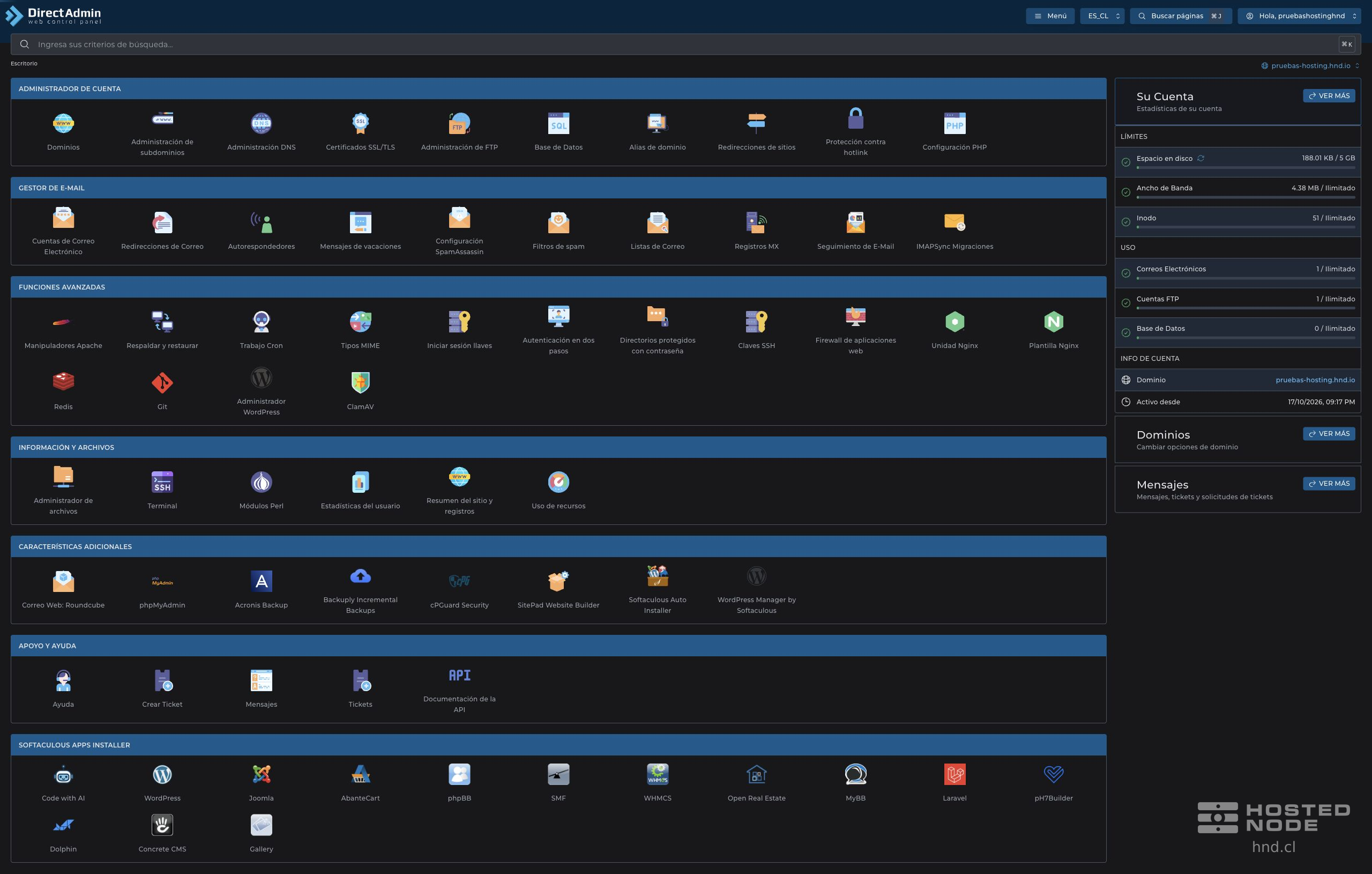
On the dashboard, open Advanced Features → Cron Jobs and click Create Cron Job.
1. Set the frequency
The form contains five fields: Minute, Hour, Day of Month, Month and Day of Week. An asterisk (*) accepts all values for that field.
To run daily at 03:00, enter
0in Minute and3in Hour.Leave
*in Day of Month, Month, and Day of Week.Review the phrase Cron job will run calculated by the panel.
Leave Run on @reboot unchecked when you want to use a regular schedule.
You can also use lists such as 0,30, ranges such as 1-5 and intervals such as */15 in the corresponding field. Adjust the frequency to suit the application and service limits. Do not schedule overlapping runs if the task may take longer than its interval.
2. Enter the command and create the task
In Command, enter the full command provided by your application, using the paths for your account. The example /bin/date > /dev/null runs the date command and discards its output; it helps explain the form but does not perform a task for your application.
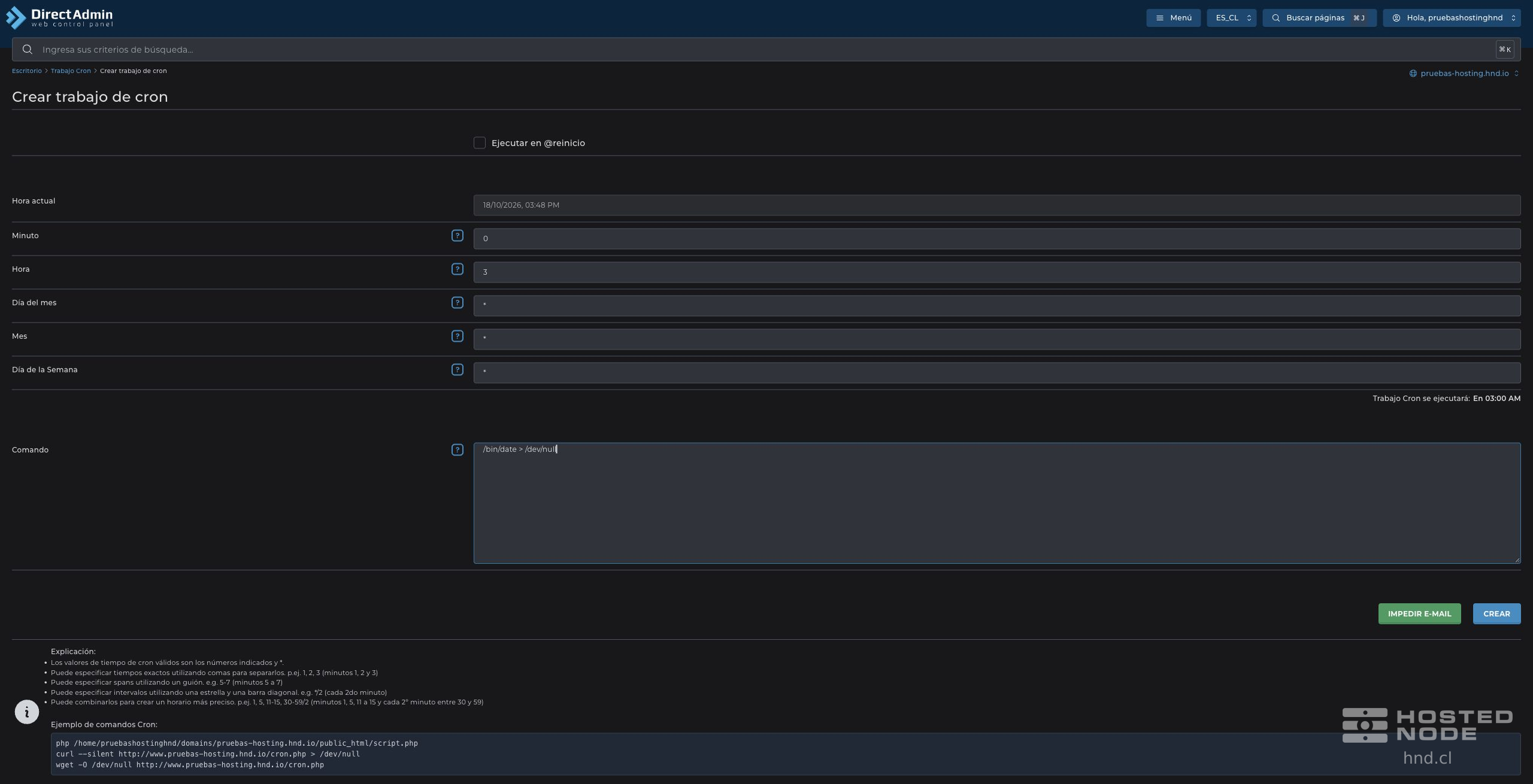
The button Prevent E-Mail lets you adjust the command's output according to the panel's behavior. Review the resulting text before saving; hiding the output can also hide useful information for diagnosing a failure.
Click Create and wait for Cron job created.
3. Verify the saved settings

Check the five fields and the full command in the table. Use Edit if you need to correct them. The presence of the row confirms the schedule, but not that the command has completed successfully: check for the expected result in the application after its next run.
If a task does not work, check the command, its paths, the execution time, and the account permissions. Avoid creating duplicates when trying to fix it.