

How to Create an Email Forwarder in DirectAdmin
Create an email forwarder, add the source and destination to the preview, and check the confirmation from DirectAdmin.
An email forwarder sends messages received at one address to another destination address. The form lets you add the forwarder name and recipients before creating the rule.
Before you begin
Select the domain for the source address. Check that the domain's email is delivered to this hosting service and that you control the destination address. If email is managed by an external provider, its forwarders must be configured there.
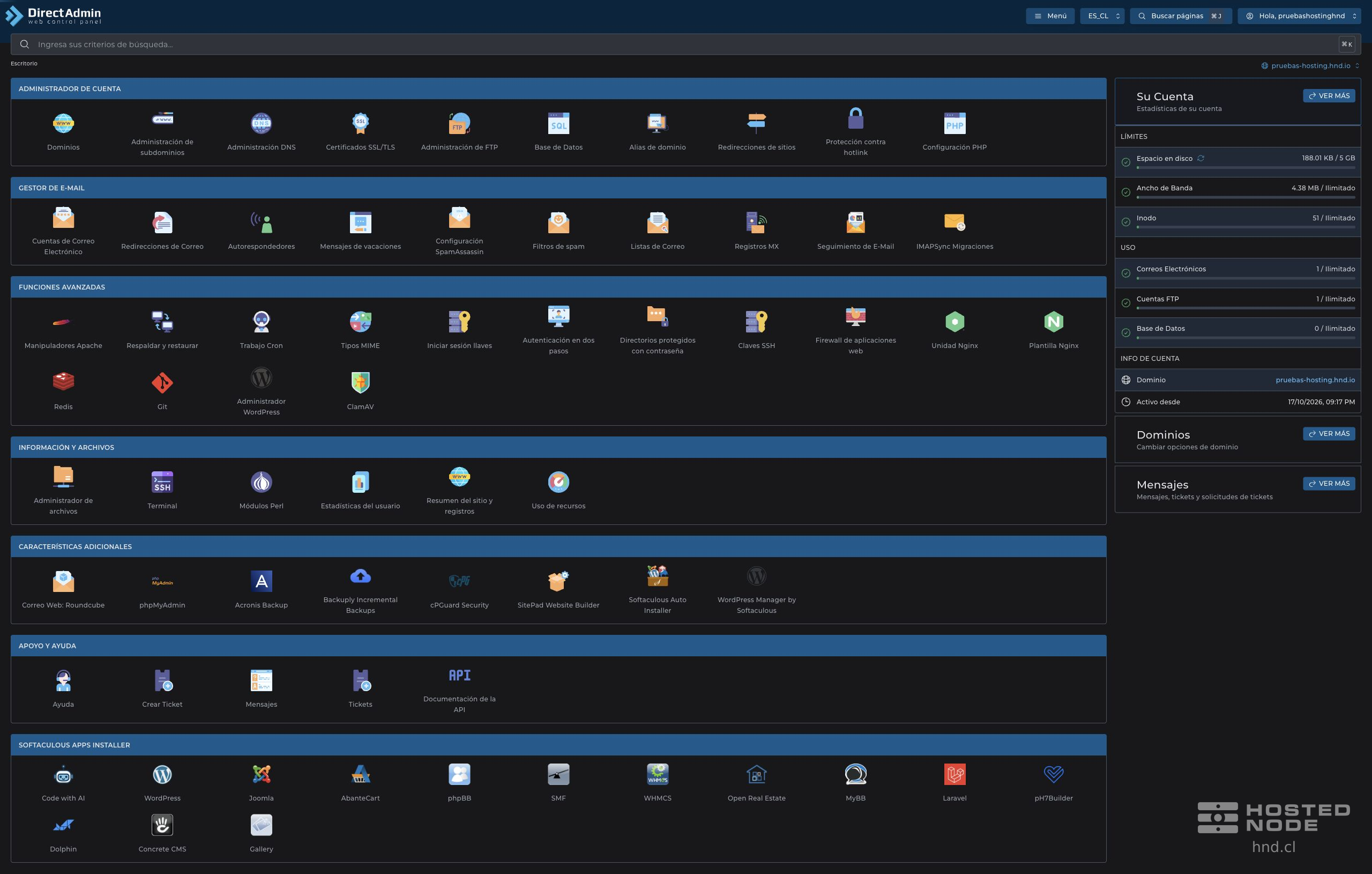
On the dashboard, open E-mail Manager → Forwarders and click Create E-mail Forwarder.
1. Add the source and destination
Under New Forwarder Name, enter only the part before the at sign. For example,
contacto. Check the domain suffix.Click Add next to the name to include it in the request's list of forwarders.
Under Add Destination, leave E-mail selected and enter the full address that will receive the messages.
Click the Add button for the destination. Check that the source and destination appear in Request Preview.
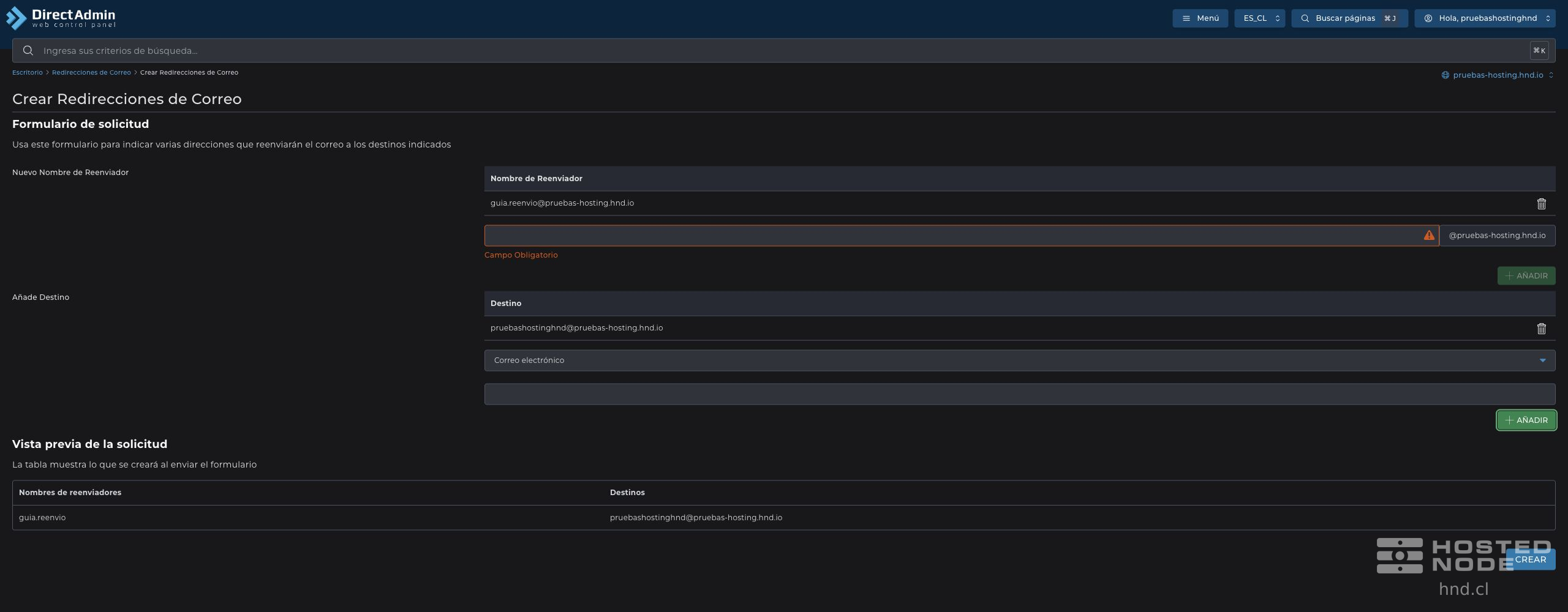
The two Add buttons prepare the request; you still need to click Create. If you make a mistake before creating it, use Remove Forwarder or Remove Destination in the corresponding list and add the correct details again.
2. Create the forwarder
Check that the destination is not the same as the source address and does not send messages back to it through another rule. Avoid forwarding loops.
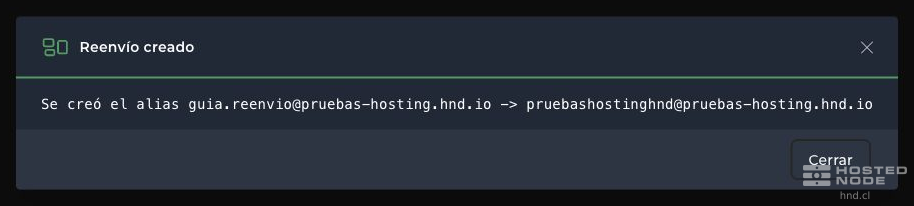
Click Create. The Forwarder Created window shows the relationship between the source and destination. Review both addresses and click Close.
3. Check delivery
The rule should appear under Forwarders. Send a test message to the source address and check the destination, including its spam folder.
A forwarder does not, by itself, create a separate mailbox or a password to access it. If a mailbox with the same name also exists, check separately whether it retains messages and how it behaves alongside the rule.
If the destination does not receive the message, check the active domain, the spelling of the address, the provider receiving the email, and any rejection by the recipient. The creation confirmation does not verify final delivery to an external provider.