

How to review the web application firewall and create a rule exception in DirectAdmin
Review the WAF and its audit log in DirectAdmin, identify the hostname, and save an individual exclusion when a rule blocks a valid request.
The web application firewall (WAF) inspects site requests. Its audit log lets you review blocks and the rules that trigger them; the configuration supports exclusions by hostname.
1. Check the site's status
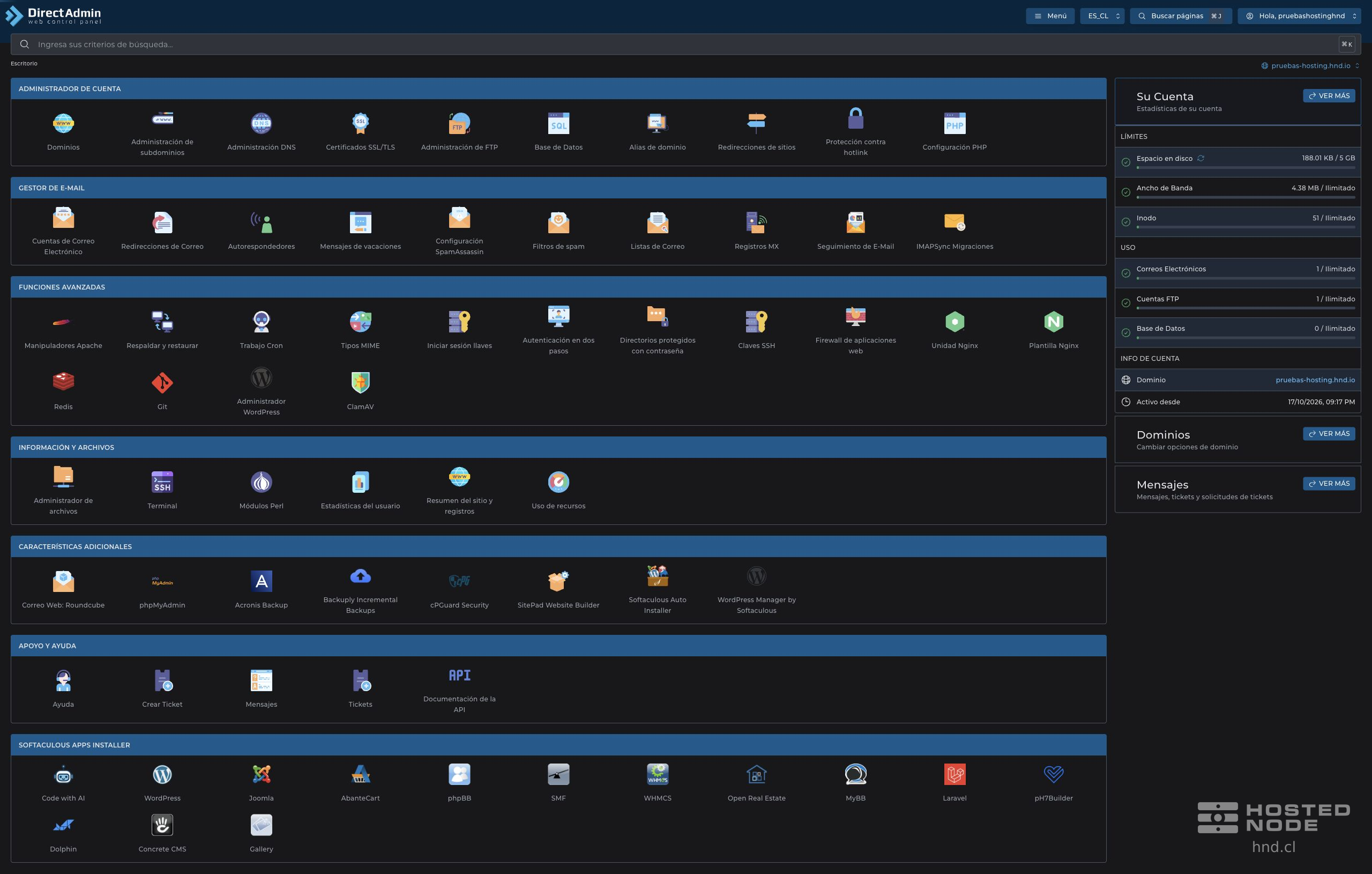
Select the domain and open Advanced Features → Web Application Firewall from the dashboard.

The table shows each Hostname, its Status and the number of Exclusions. The filters let you view All, Modified, or Server Defaults. Check the hostname: the main domain and a subdomain have their own rows.
2. Review the log before adding an exclusion
Click Audit Log in the affected site's row.
Repeat the legitimate operation that was failing and use Reload to review the available events.
Identify the event that matches the time and operation, and note the numeric identifier of the rule listed.
Confirm that the request is legitimate before excluding the rule. A block alone does not prove a false positive.

An empty audit log does not identify which rule you should exclude. If you cannot link the problem to a specific rule, provide support with the hostname, time, and failing action, without passwords or private request data.
3. Add an individual exclusion
Return to the overview and click Modify in the correct hostname's row.
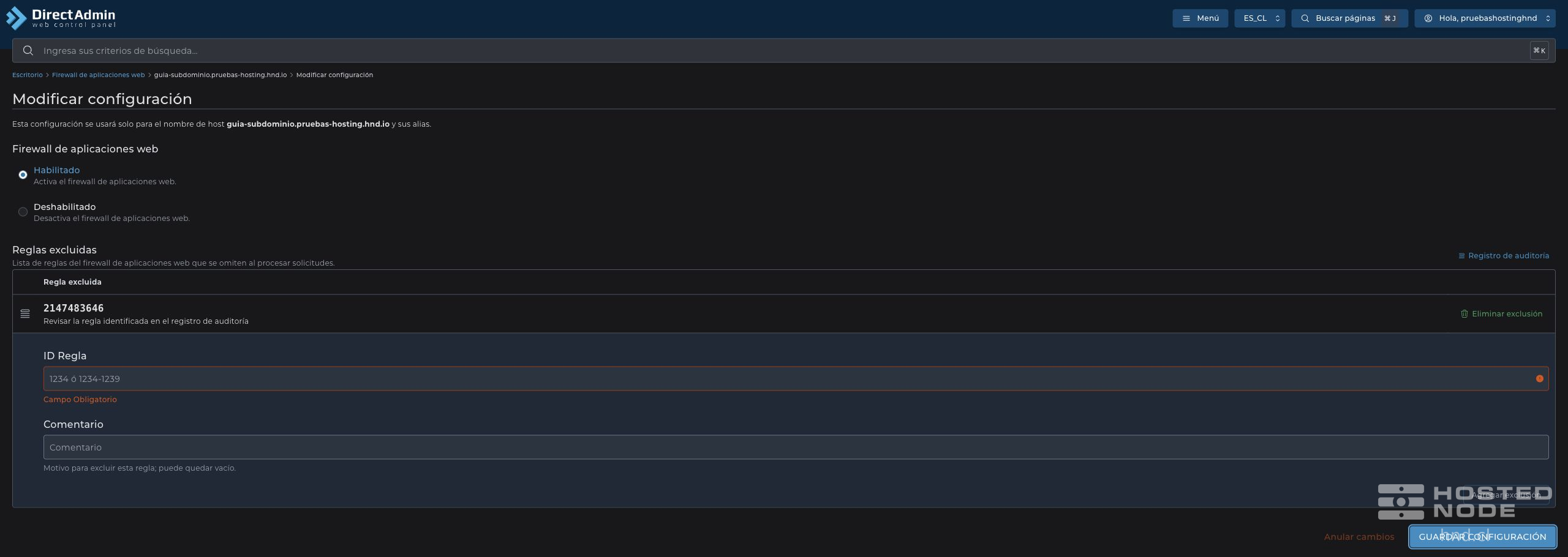
Keep the firewall Enabled.
In Rule ID, enter the exact identifier obtained from the audit log.
In Comment, explain the reason for the exclusion.
Click Add Exclusion and check that it appears in the Excluded Rules list.
Click Save Configuration and wait for The configuration has been updated.
4. Check the result and remove unnecessary exclusions
Add Exclusion adds the rule to the list and clears the fields for a new entry. Save the configuration to retain the list.
Reopen the configuration to verify the saved exclusion. Repeat the site operation and review its audit log. If it still fails, check the new event before adding another exclusion.
An exclusion skips checking that rule within the specified scope; it reduces that part of the protection. If it is no longer needed, click Delete Exclusion in its row and then Save Configuration. Verify that the WAF is still enabled and check the site again.