

How to configure an autoresponder in DirectAdmin
Create an automatic reply in DirectAdmin, set the subject, message, and frequency, and check that it appears under Autoresponders.
An autoresponder sends an automatic reply to anyone who emails its address. You can define the text, the subject prefix, and the minimum interval before replying to the same sender again.
Before you begin
Select the correct domain and check that your hosting manages its email. Choose the address for the reply and check whether it already has a mailbox, a forwarder, or another autoresponder to avoid incompatible configurations.
On the dashboard, open E-mail Manager → Autoresponders and click Create Autoresponder.
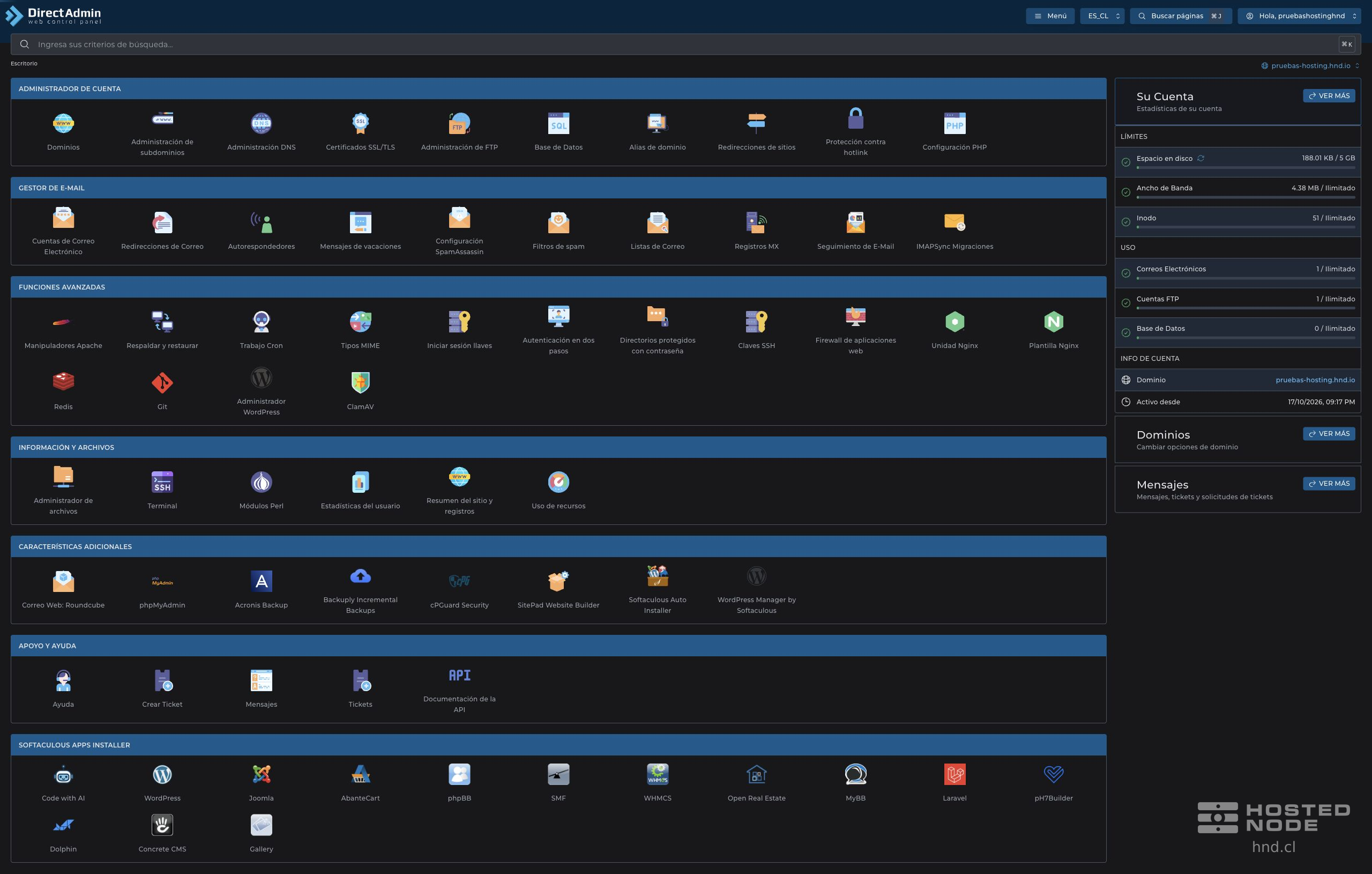
1. Fill in the address and message
In Responder Address, enter the part before the @ sign and check the domain added by the panel.
In Subject Prefix, enter recognizable text, for example
Respuesta automática. The panel places it before the original subject.In Content-Type, use
text/plainfor a plain text message.Enter the content in Responder Message. State when the person emailing you can expect a reply.
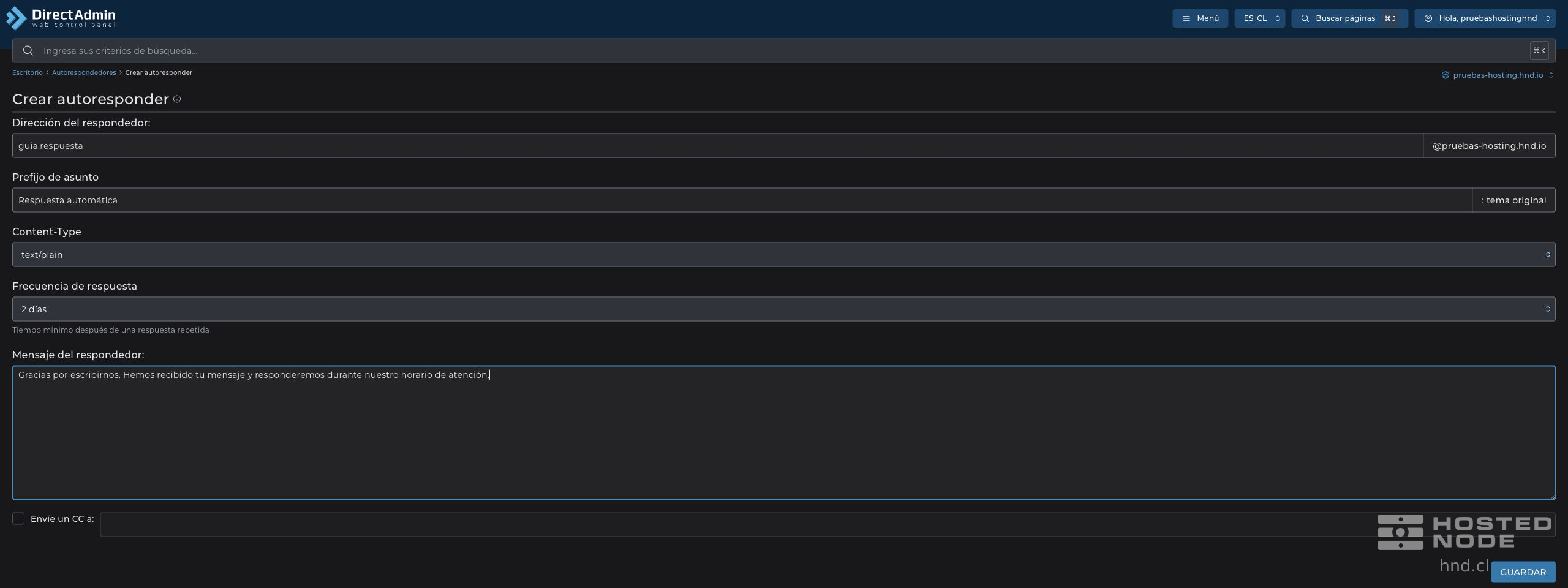
You can use a short message such as: “Thank you for contacting us. We have received your message and will reply during our business hours.” Avoid including private information that any sender would receive.
2. Review the frequency and copy settings
Select the Reply Frequency. The panel describes it as the minimum time before a repeat reply: during that interval, you should not expect another automatic reply if you immediately send another email from the same sender.
The Send a CC to option is optional. Enable it only if you need the copy and enter an authorized address; check that destination before saving.
Click Save and wait for Autoresponder Created.
3. Check and manage the reply

Check the address in the Autoresponders table and the CC destination if you configured one. Use Modify to review the text and saved settings.
To test the reply, email that address from a test sender account you control. Keep the selected frequency in mind if you repeat the test. Also check the sender's spam folder.
The automatic reply does not replace checking that the original messages reach the mailbox or destination you need. If you want a reply limited to dates when you are away for an existing mailbox, use Vacation Messages. When you no longer need the autoresponder, select it in its table and use Delete.