

How to Create Custom DNS Records in DirectAdmin: DKIM, SPF, and DMARC
Add TXT records for DKIM and DMARC and update the existing SPF record in DirectAdmin, checking the domain, each record’s name, and its value.
When an email provider or sending platform asks you to verify your domain, it may give you DNS records. In this guide, you will use DirectAdmin's DNS Management to add DKIM and DMARC TXT records and review an existing SPF record, using fictional data from an email provider.
The server address and name, domain, username, limits, and available tools may vary depending on your service. Use your own hosting login details; the screenshots show a reference interface.
1. Confirm the domain and where its DNS is managed
Check the exact domain specified by the provider in the record names. A single-letter difference means a different domain. If the request and the records do not match, confirm which is correct before saving.
Confirm that the domain's authoritative DNS is managed by this DirectAdmin service. If it uses another provider's DNS, changes on this screen might have no effect on the Internet; check where you need to manage them.
A nameserver in the format ns1… identifies a DNS server. It is not the name or value of a DKIM, SPF, or DMARC TXT record. You do not need to modify NS or MX records to add these TXT records.
Have the type, name, full value, and TTL, if specified, of each record ready. Keep a copy of the current value before editing it.
2. Open DNS Management and review existing records

On the DirectAdmin dashboard, go to Account Manager → DNS Management. Check the selected domain before adding or editing records.
The table shows Name, TTL, Type, and Value. Review the existing TXT records: a value starting with v=spf1 is the SPF record; _dmarc identifies the DMARC policy; a name ending in ._domainkey corresponds to a DKIM selector.
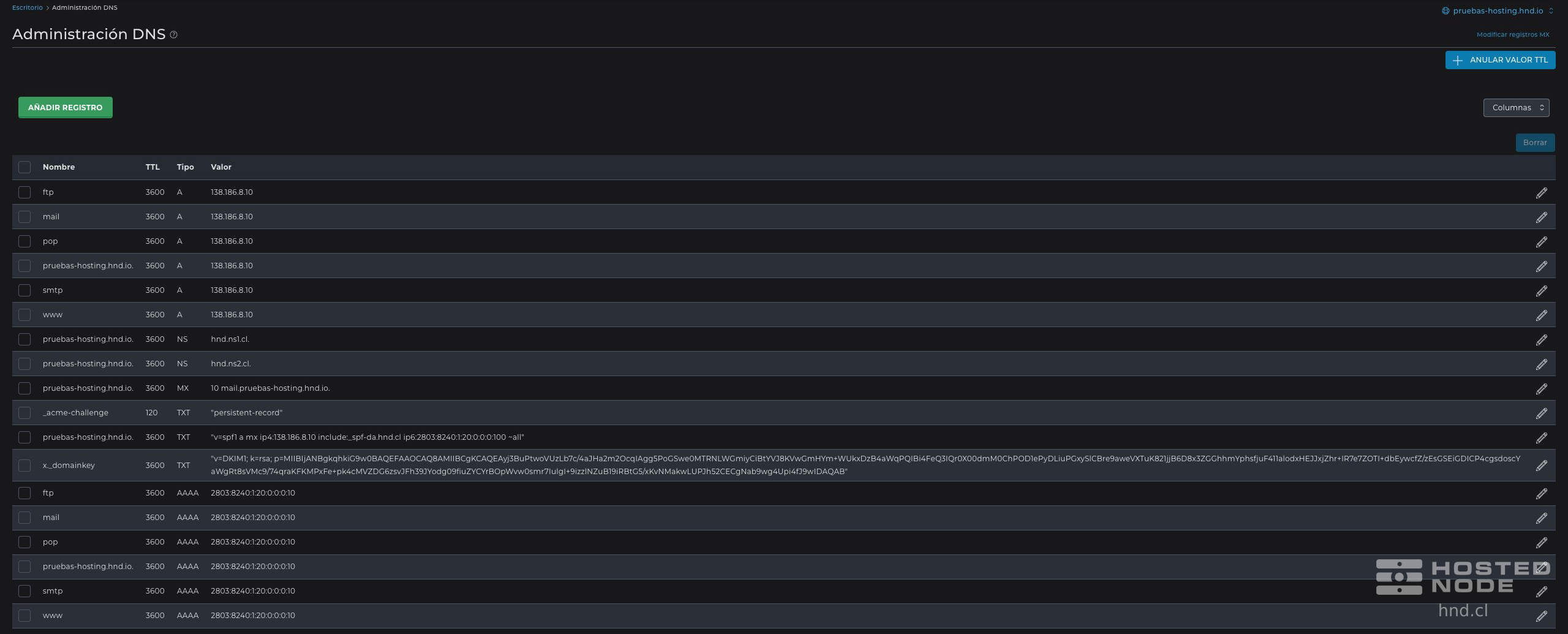
If the same name and type you need to configure already exist, review the value and use Edit where appropriate. Do not add duplicate SPF or DMARC records. Different DKIM selectors, such as x._domainkey and demo._domainkey, can coexist; do not delete another service's selector.
3. Fill in Name, TTL, and Value correctly
Click Add Record and choose the requested type. Use TXT in the following three examples. Under TXT Record Type, select Plain to enter the full value provided by the provider.
Name: if the form displays the domain as a suffix, enter only the relative part, such as demo._domainkey or _dmarc. For the root domain, keep the full name DirectAdmin suggests when you choose TXT, including the trailing dot: pruebas-hosting.hnd.io. in this example.
If you enter a full name in this panel, end it with a dot to indicate that it is absolute. Do not paste a full name without checking the suffix: you could end up with the domain repeated. Do not assume that @ is the required format; use the root name suggested by the panel.
TTL: this is the cache duration, in seconds. Keep the default value unless the provider requires a different one. In the screenshots it is 3600, equivalent to one hour; do not use Override TTL Value to change the entire zone as part of this procedure.
Value: paste only the requested content, without headings, labels, continuation backslashes, or line breaks introduced when copying from an email. In Plain mode, you can paste the text without surrounding quotation marks; DirectAdmin displays it in quotation marks when saved.
4. Add the DKIM TXT record
DKIM allows the email service to sign messages and recipients to verify that signature using a public key. If the provider supplies a TXT record with the selector demo, fill in these fields:
Record Type: TXT.
Name: demo._domainkey.
TTL: the value specified by the provider or the default value.
TXT Record Type: Plain.
Value: the complete string supplied by the provider, for example one starting with k=rsa;p= followed by the public key.
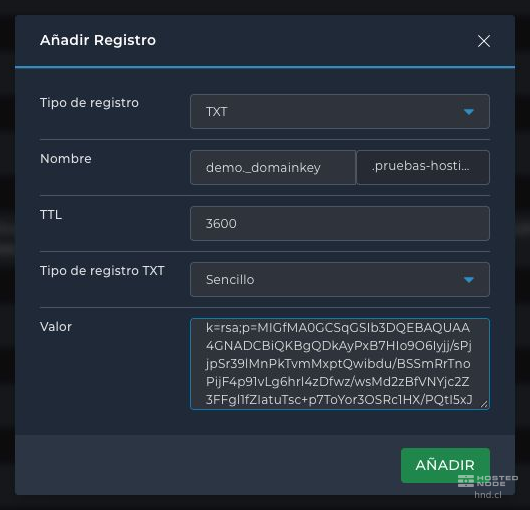
In the pruebas-hosting.hnd.io zone, the relative name demo._domainkey corresponds to demo._domainkey.pruebas-hosting.hnd.io. The key may visually wrap across several lines within the field; check that it was pasted in full. Do not add ellipses, do not modify the characters, and never publish a private key.
Click Add. Once the panel confirms the save, find the selector's TXT record in the table and check its name and value. If your provider requests CNAME instead of TXT, use exactly the type and target it supplied; do not convert its instructions into a TXT key.
5. Review and update SPF without creating a second record
SPF specifies which servers may send email for the domain used in the SPF check. It is published as a TXT record. Each name must have only one record starting with v=spf1.
A provider may supply this value:
v=spf1 include:spf.proveedor.example ~allIf an SPF record already exists, click Edit in its row. If DirectAdmin opens the SPF wizard, change TXT Record Type to Plain and review the full value. Add include:spf.proveedor.example before the final all mechanism, separated by spaces and without repeating it if it is already present.
Simplified example: if the original value is v=spf1 a mx ~all and those mechanisms are still needed, it would become:
v=spf1 a mx include:spf.proveedor.example ~allKeep only one v=spf1 and a single all mechanism at the end. Preserve the policy your domain already uses: if it ends in -all, do not change it to ~all without reviewing the effect. If the record contains redirect= or you do not know how to integrate the current senders, ask for help before modifying it.
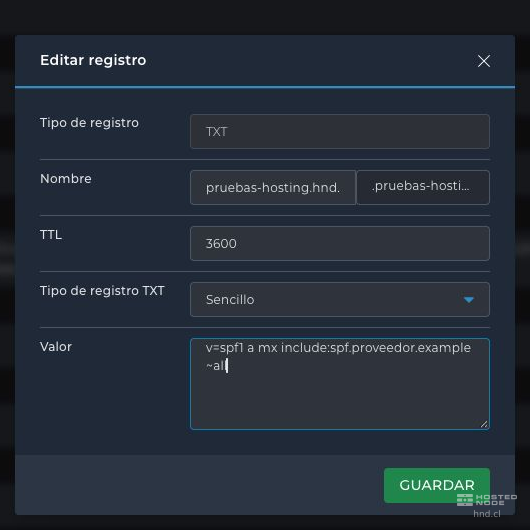
Click Save and check that there is still only one SPF record for that name. If no SPF record existed, use Add Record → TXT, keep the root name suggested by DirectAdmin, and paste the policy confirmed for all services that send email from your domain.
SPF limits the terms that trigger DNS lookups during evaluation to ten, including dependencies of other include mechanisms. Do not keep adding services without checking this limit; if you have several providers, request validation of the resulting SPF record.
6. Add or update the DMARC TXT record
DMARC indicates how to handle email that fails its authentication and alignment checks against the domain in the visible sender address. If _dmarc already exists, edit that row instead of creating a second record.
Record Type: TXT.
Name: _dmarc.
TXT Record Type: Plain.
TTL: the value specified by the provider or the default.
Value: the policy confirmed for your domain.
This is an example of a monitoring policy with aggregate reports:
v=DMARC1; p=none; rua=mailto:informes@ejemplo.example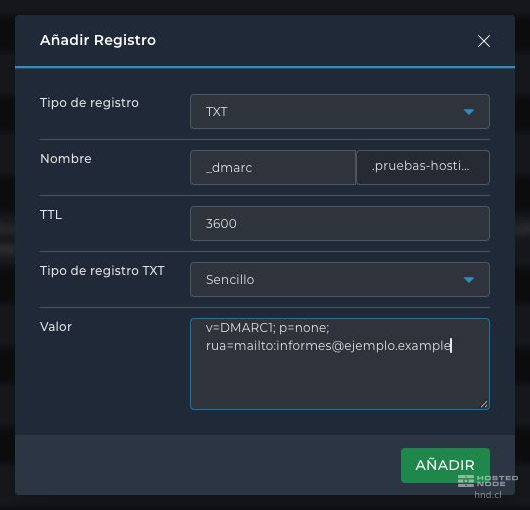
p=none does not request that messages be rejected or quarantined based on DMARC; it allows you to monitor the results. rua specifies where aggregate reports should be requested. Replace the address with an authorized mailbox or service that can receive them: adding the TXT record does not create that email account. If the destination belongs to another domain, additional authorization from the recipient may be required.
Do not change an existing p=quarantine or p=reject policy to p=none just because it appears in an example. Do not make the policy stricter without first reviewing all services that send email. Click Add or Save, as appropriate.
7. Check the result
Return to the table and check the name, TXT type, TTL, and value of each record. To review a long value, open Edit, read it in full, and close the form without saving if you do not need to make changes.
Confirm that the DKIM selector is the one requested, that there is only one SPF record for the configured name, and only one policy TXT record at _dmarc.
Saving confirms the change in the control panel's zone; it does not by itself prove that all Internet resolvers can already see it. Caches may retain previous values according to their TTL.
After allowing time for caches to update, request or repeat the provider's validation. If it still fails, first check the exact domain, where its DNS is managed, the name suffix, and the full value.
Adding these records does not by itself guarantee delivery to the inbox. The provider must use DKIM signing and the appropriate sending domains; keep the other website and email records intact.