

How to use the built-in terminal in DirectAdmin
Open the DirectAdmin terminal, run basic commands to navigate between folders, and close the session. Its availability depends on your hosting plan.
The terminal included in DirectAdmin lets you enter commands for your hosting account from your browser. You can check the current directory, list its contents, and move between directories without leaving the panel.
The server address and name, domain, username, limits, and available tools may vary depending on your service. Use your own hosting login details; the screenshots show a reference interface.
1. Open Terminal from the dashboard
Log in to DirectAdmin using your service credentials. On the dashboard, locate the System Info & Files group and click Terminal.

Wait for Terminal (Active) and a prompt ready for input to appear. If you see Terminal (Closed), click Connect. If an error appears or the connection does not complete, save the message and contact support; do not change your account permissions to try to enable it.
2. Run your first commands
Click inside the terminal area, type a command, and press Enter. Wait for its output and for the prompt to reappear before continuing. Do not type the part of the prompt containing the username, server, or $ symbol.
To find out which directory you are in, run:
pwdThe output is the full path of the current directory. In a hosting account, you will normally start in your user's directory; do not copy the path shown in the screenshot as your own.
To view the visible files and directories in that location, run:
lsThese two commands retrieve information and do not modify your files. The list may differ depending on your account's contents.
3. Enter a directory and return to the previous level
The cd command changes the working directory. If ls shows a directory named domains, you can enter it with:
cd domainsRun pwd again to confirm the new location. To return to the parent directory, type:
cd ..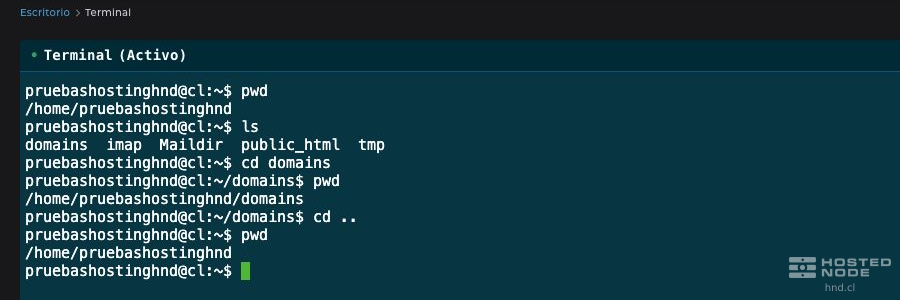
Replace domains with the actual name of a directory in your account when appropriate. Linux is case-sensitive. If the name contains spaces, enclose it in quotation marks, for example cd "my folder". If you receive No such file or directory, check the current location with pwd and the names with ls.
4. End the terminal session
When you are finished and no task is running, click Disconnect in the upper-right corner of the terminal area. The status will change to Terminal (Closed), and the Connect button will appear.

Disconnecting the terminal does not log you out of DirectAdmin. If you have finished using the panel, open your user menu and select Log Out.
Recommendations for use
Only run commands whose purpose you understand. A delete or overwrite command can immediately affect your site's files.
The terminal operates within your hosting account's permissions and limits. A Permission denied message indicates that the operation is not allowed for that user.
If a task keeps running and you need to interrupt it, Ctrl+C usually stops the foreground command. This does not undo changes it has already made.
Do not paste passwords, private keys, or commands received from a source you have not reviewed.