

How to Create an SPF Record in DirectAdmin
Create or update an SPF TXT record with the DirectAdmin wizard: redirect, MX, domain IP, IPv4, IPv6, servers, include, and Fail, SoftFail, and Neutral modes.
SPF declares which servers are authorized to send email for the envelope sender domain used in the SPF check. DirectAdmin lets you prepare this policy through TXT Record Type → SPF. The result is saved as TXT and begins with v=spf1.
The URL and server name, domain, username, limits, and tools may vary depending on your service. Log in using your own hosting details and always check the selected domain. The screenshots show a reference interface.
1. Review SPF before adding another record
In the full dashboard, go to Account Manager → DNS Management. Check the domain and confirm that its authoritative DNS is managed by this service.
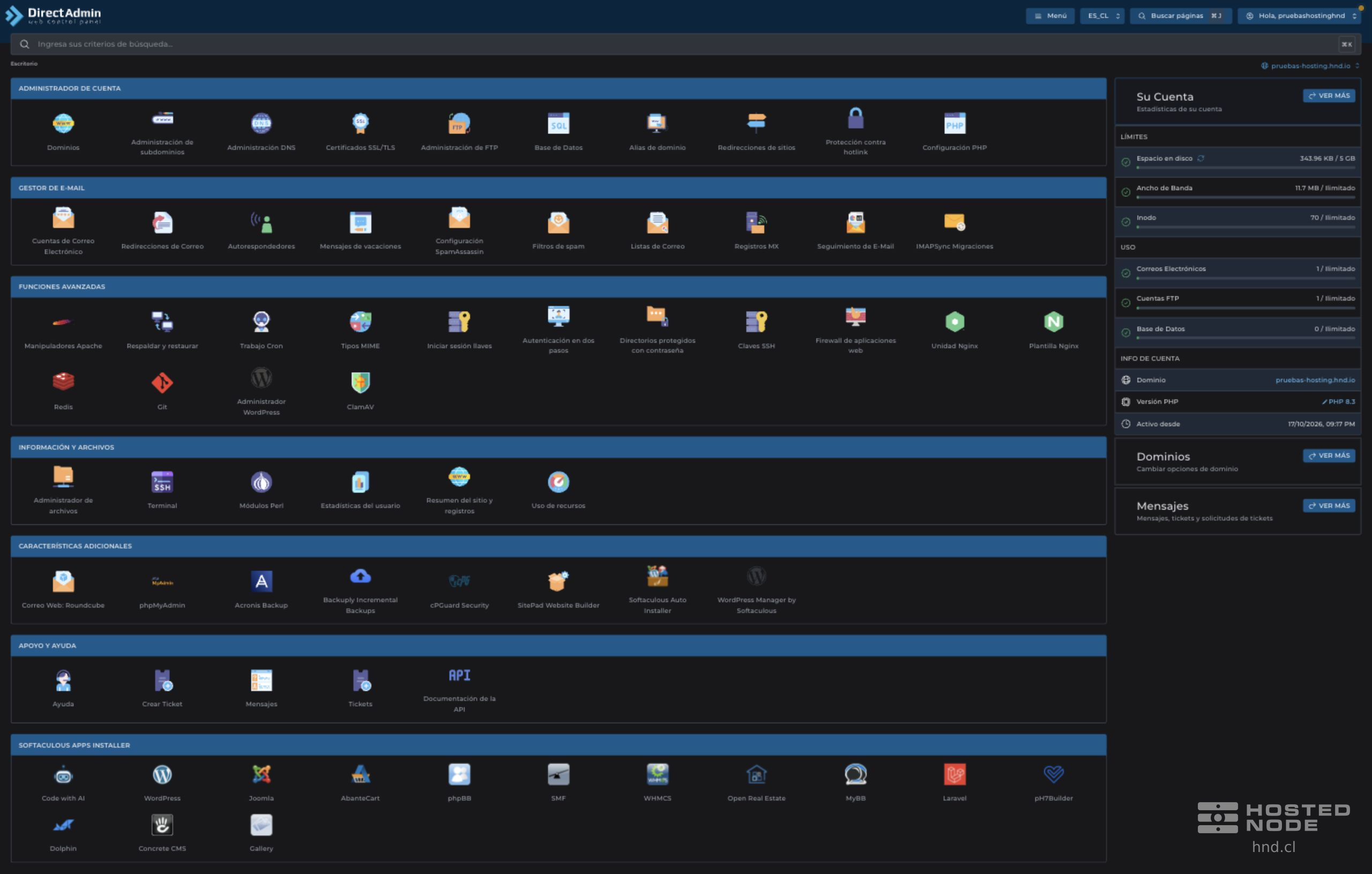
Look for a TXT record whose value begins with v=spf1. If one already exists for the name you need to configure, click Edit on that row and keep a copy of the current value. If none exists, use Add Record. There must be only one SPF record per name; other verification or DKIM TXT records can coexist because they serve a different purpose.
2. Select TXT and then SPF

To create the record, click Add Record, select TXT under Record Type, and SPF under TXT Record Type. When editing an existing SPF record, the panel may open that wizard directly.
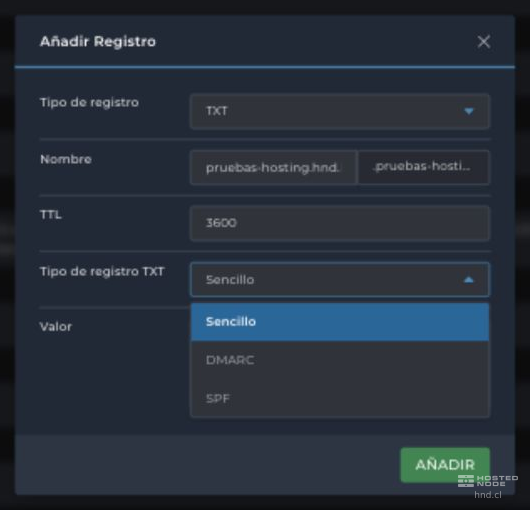
Field | How to fill it in |
|---|---|
Record Type | TXT. When editing an existing record, this may be locked. |
Name | For the root domain, keep the full name suggested by the panel, including its trailing dot; in the screenshot, it is pruebas-hosting.hnd.io. For a sending subdomain, use the exact name corresponding to that service. |
TTL | Cache duration, in seconds. The form suggests 3600, or one hour. Keep your service's value unless the provider requests another. |
TXT Record Type | SPF to use its controls. |
The panel displays the domain as a suffix next to Name. A relative name such as envios is completed with that suffix; a full name must end with a dot to avoid duplicating the domain. Do not assume that @ is the format required by this screen.
3. Decide whether to use Redirect Domain
Redirect Domain lets you use another domain's SPF policy. Enter only its name, for example politica.proveedor.example, without https://, without an email address and without typing redirect= in that field.
When you fill it in, DirectAdmin hides the checkboxes, sender lists, and Mode, and generates a policy like this:
v=spf1 redirect=politica.proveedor.example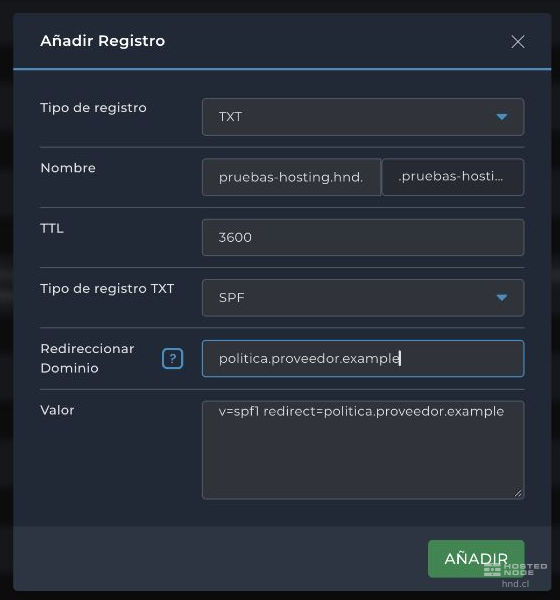
Use it only if your provider instructs you to delegate to that policy and you know it covers all your senders. To add a provider to your own policy, use Include Domain. Leave Redirect Domain empty to display the controls in the following steps. The domain ending in .example is illustrative: replace it with the actual destination specified by your provider.
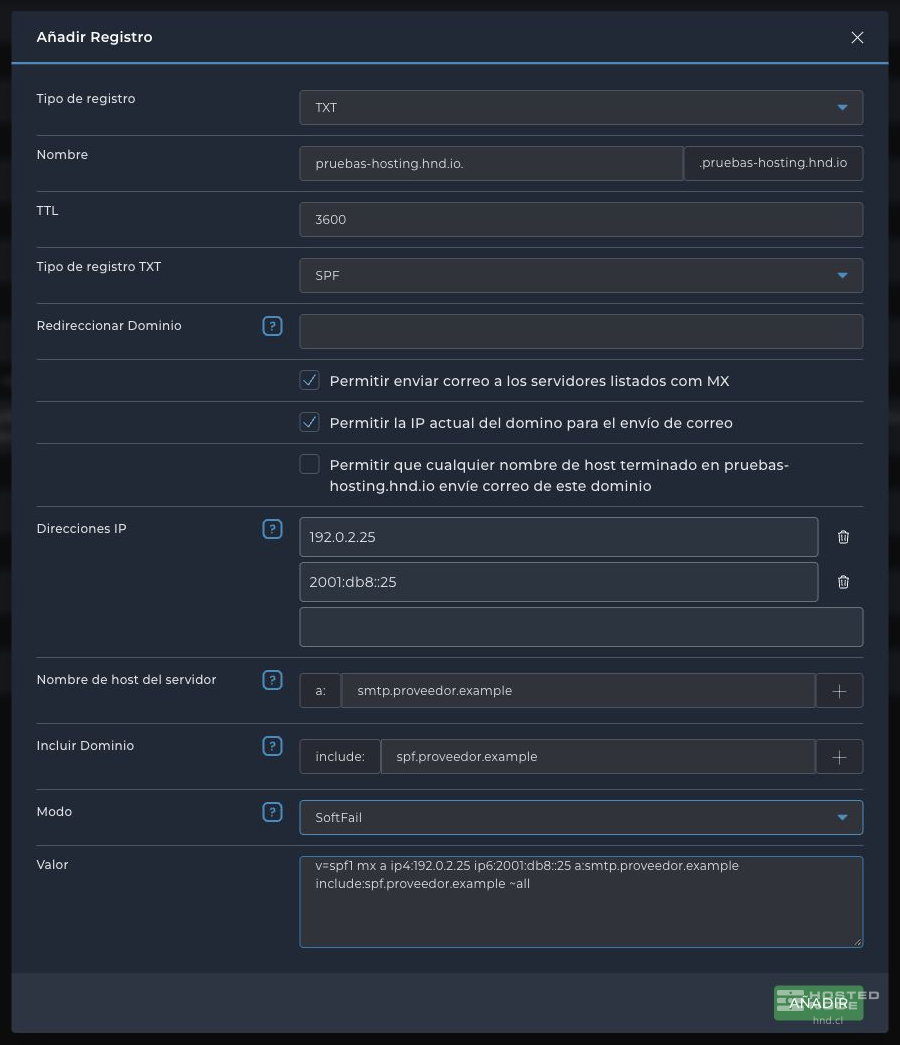
4. Review the three authorization checkboxes
Panel checkbox | Generated mechanism | What it authorizes |
|---|---|---|
Allow servers listed as MX to send email | mx | The addresses of the servers listed in the evaluated domain's MX records. Select it only if those servers also send email; receiving and sending email are not the same function. |
Allow the domain's current IP to send email | a | The A or AAAA addresses of the evaluated domain. It does not set a fixed IP in the TXT record: if those records change, what this mechanism authorizes changes too. Select it if those addresses actually send email. |
Allow any hostname ending in the domain to send email | ptr | Uses reverse DNS checks and their validation to associate the sending IP with that domain. It is not equivalent to authorizing any name written with that suffix. This mechanism is discouraged; leave it unchecked for a new configuration. |
In a new form, MX and the domain IP are checked, and ptr is unchecked. These are the wizard's initial values, not confirmation of the senders your service uses.
5. Add IP addresses, servers, and included domains
Field | Accepted information |
|---|---|
IP Addresses | One IPv4 or IPv6 address per entry, without typing ip4: or ip6:. For example, 192.0.2.25 or 2001:db8::25. The wizard adds the corresponding prefix and lets you continue on another line. It also accepts CIDR networks, such as 192.0.2.0/24; a network authorizes all its addresses, so you must use the range actually assigned for sending. |
Server Hostname | DNS name of a sending server, for example smtp.proveedor.example. The a: prefix is already displayed on screen: do not repeat it. The result authorizes the A or AAAA addresses that resolve for that name. |
Include Domain | Domain of the SPF policy specified by your provider, for example spf.proveedor.example. The include: prefix is already in the form. The recipient evaluates that policy to determine whether it authorizes the sending IP; do not enter an IP address or the full SPF value here. |
Under IP Addresses, enter an address and press Enter or move to the next entry to add another. The trash icon removes the corresponding entry from the form. Under Server Hostname and Include Domain, the + button adds another row, and the removal controls let you delete one you no longer need. Review Value after each change.
The addresses 192.0.2.25 and 2001:db8::25 and the network 192.0.2.0/24 are examples reserved for documentation. Names ending in .example are not real services either. Replace them with your senders' confirmed details; do not automatically use the website's IP as the outgoing mail IP.
6. Select the Mode
Mode sets the result for IPs that do not match the previously authorized senders. The wizard offers these three options:
Mode | Generated ending | Meaning |
|---|---|---|
Fail | -all | The remaining IPs are not authorized: the SPF result is fail. The recipient decides how to use it to accept, filter, or reject messages; it is not an automatic rejection command for every recipient. |
SoftFail | ~all | The remaining IPs are considered probably unauthorized: the result is softfail. It may influence filters; it does not guarantee that email will be accepted. |
Neutral | ?all | The policy does not state whether the remaining IPs are authorized or not. This does not constitute an SPF pass. |
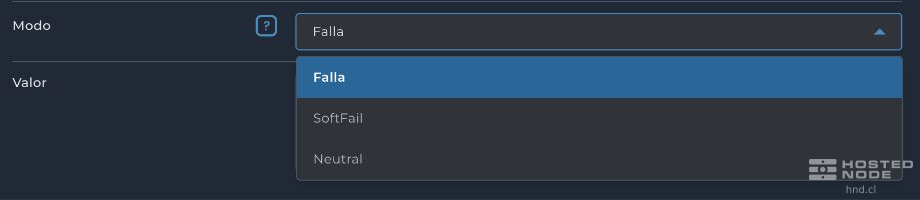
A new form displays Fail. If you are editing an SPF policy already in use, keep its mode until you have evaluated all senders. Do not change -all to ~all or ?all just to match an example.
7. Review Value and save
Value contains the full TXT record that will be saved. It must begin with v=spf1 exactly once. With Redirect Domain empty, check the selected mechanisms and a single all at the end. The wizard options update the string; do not add a second v=spf1 or paste another service's policy over it without integrating the required senders.
With the illustrative IPs and names in the screenshot, the value is:
v=spf1 mx a ip4:192.0.2.25 ip6:2001:db8::25 a:smtp.proveedor.example include:spf.proveedor.example ~allThe Value field can also be edited. Changing a wizard control afterward may rebuild it; review the entire string just before saving. If an existing policy has elements you do not recognize, keep a copy and request validation before replacing them.
Check the name, TTL, senders, and mode. Click Add to create the record or Save if you edited the existing one. Wait for confirmation from the panel and look for the TXT record that begins with v=spf1 in the table.

8. Check the result
Confirm that there is only one v=spf1 record for the configured name and that it includes all services that need to send email. An SPF policy for the root domain does not automatically replace each subdomain's policy.
To read a long value, open Edit. If you are only checking it, close the form without saving.
Saving changes this DNS zone. Caches may retain the previous value according to its TTL; if the domain uses external DNS, the change in DirectAdmin may not take effect on the Internet.
Once the caches have updated, check the validation provided by your email service. SPF authorizes servers; it does not configure mailboxes or guarantee inbox delivery.