

DocumentationWhat payment methods does Hostednode accept?What are Hostednode's billing cycles?When is the monthly renewal charge generated?When are services suspended for non-payment?When is a service deleted for non-payment?What should you do if a payment method is unavailable?Are all services subject to VAT?Do you issue receipts or invoices?How to create a customer account on HostednodeDo you accept cryptocurrency payments?How to Access DirectAdmin and Explore the Panel’s Main FeaturesHow to Configure PHP for Subdomains and Additional Domains in DirectAdminHow to change the PHP version and settings in DirectAdminHow to Create an Email Account in DirectAdminHow to use the DirectAdmin API with Codex or ClaudeHow to Enable and Use Redis in DirectAdminHow to add a domain alias and use it for email in DirectAdminHow to Add an Additional Domain in DirectAdminHow to Add an Additional User to an Existing Database in DirectAdminHow to configure an autoresponder in DirectAdminHow to Set Up a Vacation Message in DirectAdminHow to Create a Subdomain in DirectAdminHow to Create a Cron Job in DirectAdminHow to create a database and associate its user in DirectAdminHow to Create an FTP Account in DirectAdminHow to Create a Mailing List in DirectAdminHow to create an email forwarder in DirectAdminHow to Create a Site Redirect in DirectAdminHow to Install WordPress with Softaculous WordPress Management in DirectAdminHow to Install WordPress with the DirectAdmin WordPress ManagerHow to Modify MX Records to Use Google Workspace in DirectAdminHow to Review the Web Application Firewall and Create a Rule Exception in DirectAdminHow to Check Account Resource Usage in DirectAdminHow to Use the ClamAV Antivirus from DirectAdminHow to Create Custom DNS Records in DirectAdmin: DKIM, SPF, and DMARCHow to use the built-in terminal in DirectAdminHow to Create a Password-Protected Directory in DirectAdminHow to Create a DMARC Record in DirectAdminHow to Create an SPF Record in DirectAdminHow to Install and Deploy a Node.js Application with NGINX Unit in DirectAdminHow to Install and Deploy a Python Application with NGINX Unit in DirectAdminHow to Use the DirectAdmin File ManagerHow to view site logs in DirectAdmin’s Site Summary and LogsHow to Enable Two-Step Authentication in DirectAdminHow to Set Up an SSH Key with DirectAdminHow to Use Backup and Restore in DirectAdminHow to Use DirectAdmin Nginx Templates
TUTORIAL

How to Enable Two-Step Authentication in DirectAdmin

Protect access to DirectAdmin with an authenticator app and keep recovery codes so you can sign in if you lose your device.

Two-step authentication adds a temporary code generated by an authenticator app to the login process. In addition to your DirectAdmin username and password, you will need this code to access the panel.

The panel address, server name, domain, username, versions, limits, and available tools may vary depending on your service. Use the details in your hosting welcome email.

1. Open Two-Step Authentication

From the dashboard, open Advanced Features → Two-Step Authentication. You can also find this section in your User Profile.

Location of Two-Step Authentication within Advanced Features.
Open the panel's authentication tool.

If the account is not yet using this protection, the panel will indicate that two-step authentication is disabled and display Generate Secret.

2. Link an authenticator app

Have an app that supports TOTP temporary codes ready on your phone. Click Generate Secret and add an account in your authenticator app using the QR code displayed by DirectAdmin. If you use manual entry, enter the secret exactly as it appears in the panel.

3. Confirm the code and verify activation

Enter the temporary code displayed by your app in the panel and confirm activation. If the code is about to expire, wait for the next one and enter it in full. Generating the secret alone does not activate the second factor.

Check that the message “Two-step authentication is enabled for this account” appears. Keep your current session open until you have verified that you can log in again with your password and code.
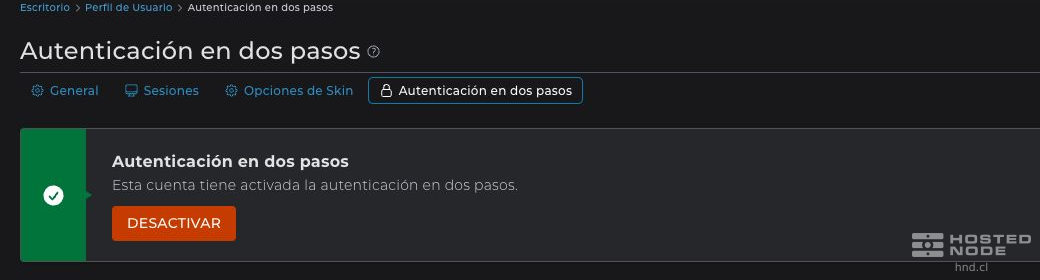
DirectAdmin confirms that two-step authentication is enabled.
The account activation message confirms that the second factor has been enabled.

4. Save recovery codes

Under Recovery Codes, click Add Codes and save the codes in a private location that you can access even if you lose your phone. Each code can be used only once and lets you regain access when you cannot generate a temporary code.

Treat these codes like passwords. If you generate a new set, replace your previous copy with the current one. Do not rely solely on a copy stored on the same phone you use for the authenticator app.

5. Use the second factor when logging in

When you log in again, enter your panel username and password, then provide the authentication code when prompted. If you do not have your device, use an available recovery code. If you lose both, contact support to review access to your account.

This protection applies to DirectAdmin login. It does not change email passwords or replace your plan's SSH or SFTP access requirements.