

How to Set Up an SSH Key with DirectAdmin
Generate a new key with Create Key or import an existing public key with Paste Key, authorize access, and prepare the private key for your SSH client.
DirectAdmin's SSH Keys utility lets you create a new key pair from the panel or authorize the public key of a pair you already have. Create Key generates the private and public keys on the hosting server; Paste Key accepts an existing public key.
The panel address, server name, domain, username, versions, limits, and available tools may vary depending on your service. Use the details in your hosting welcome email.
1. Open SSH Keys and choose an operation
From the dashboard, open Advanced Features → SSH Keys.

Create Key: use this if you need a new key pair. Generation takes place in DirectAdmin; you do not need to run ssh-keygen or create a key on your computer beforehand.
Paste Key: use this if you already have a key pair and want to authorize its public key for this account. It does not generate a new private key.
You do not need to create the .ssh folder manually to use Create Key: DirectAdmin creates the necessary directory and files. If the panel reports an error when creating or importing a key, save the message and contact support.
2. Generate a new key with Create Key
Click Create Key and complete the form:
Key ID: enter a name that identifies this key. The form adds the suffix _rsa to the file name; for example, hosting generates hosting_rsa.
Comment: add a description that helps you identify the computer or the key's purpose.
Key Size: select 4096 bits.
Password: set a passphrase to protect the private key. You will need to provide it when your client uses the key.
Authorize: select this checkbox if you also want to allow access to this account with the new key. Creating the pair and authorizing its use are separate actions.
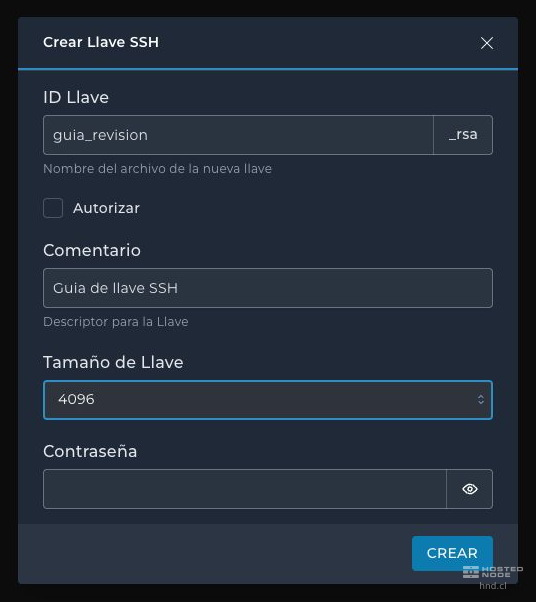
Click Create and wait for the confirmation message. The pair is generated on the hosting server, inside .ssh: the file ending in .pub contains the public key, and the file with the same name without .pub is the private key.

If you did not select Authorize when creating it and need to allow connections to this account, select the key under Public Keys and click Authorize. Then check that it appears under Authorized Keys.
3. Import an existing public key with Paste Key
If you already have a key pair, use Paste Key. Copy the entire line from the public .pub file and paste it into Line, under Paste Authorized Key. The line includes the key type, its public key data, and a comment, if present.
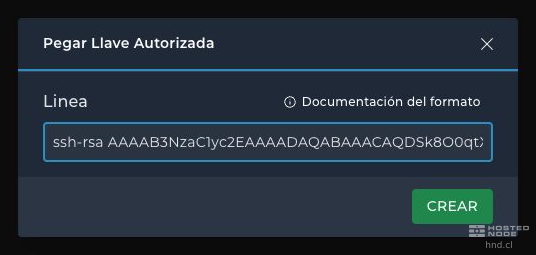
Click Create and wait for confirmation. Open Authorized Keys and check the comment, type, size, and fingerprint of the added key. Keep the private key that already corresponds to that public key on your computer.

4. Prepare the private key to connect
If you used Create Key, you do not need to generate anything on your computer. To connect from it, however, you need to save a secure copy of the private key generated by DirectAdmin on that computer and select it in your SSH client.
Open System Info & Files → File Manager. Under My Files, open .ssh, select your key file that does not end in .pub, and click Download. For example, the private key for hosting_rsa.pub is hosting_rsa. Do not confuse downloading the public key from Public Keys with downloading the private key.

Save the private key in a protected location on your computer. If you used Paste Key, use the private key you already had; you do not need to download another one from the hosting server. Generating the key in the panel and configuring the client to use it are separate steps.
5. Check the connection
Configure your SSH client to use the server, username, and port provided in the service welcome email and the corresponding private key. Enter its passphrase when prompted. Verify the server's identity before accepting it.
In PuTTY, select the private key under Connection → SSH → Auth → Credentials. PuTTY uses the .ppk format; if your key is in OpenSSH format, import it into PuTTYgen and save it in that format. This prepares the existing key for the client without generating a new pair.
A successful connection provides access with your account's permissions. If it fails, check the details in the welcome email, make sure you are using the correct private key, and verify that its public key appears under Authorized Keys. Never use the .pub file as if it were the private key.
6. Remove an authorization when it is no longer needed
Under Authorized Keys, select the corresponding key and click Delete. This revokes that access. Always identify the key by its comment and fingerprint before modifying it, and keep another valid method of accessing your account.