

DocumentationWhat payment methods does Hostednode accept?What are Hostednode's billing cycles?When is the monthly renewal charge generated?When are services suspended for non-payment?When is a service deleted for non-payment?What should you do if a payment method is unavailable?Are all services subject to VAT?Do you issue receipts or invoices?How to create a customer account on HostednodeDo you accept cryptocurrency payments?How to Access DirectAdmin and Explore the Panel’s Main FeaturesHow to Configure PHP for Subdomains and Additional Domains in DirectAdminHow to change the PHP version and settings in DirectAdminHow to Create an Email Account in DirectAdminHow to use the DirectAdmin API with Codex or ClaudeHow to Enable and Use Redis in DirectAdminHow to add a domain alias and use it for email in DirectAdminHow to Add an Additional Domain in DirectAdminHow to Add an Additional User to an Existing Database in DirectAdminHow to configure an autoresponder in DirectAdminHow to Set Up a Vacation Message in DirectAdminHow to Create a Subdomain in DirectAdminHow to Create a Cron Job in DirectAdminHow to create a database and associate its user in DirectAdminHow to Create an FTP Account in DirectAdminHow to Create a Mailing List in DirectAdminHow to create an email forwarder in DirectAdminHow to Create a Site Redirect in DirectAdminHow to Install WordPress with Softaculous WordPress Management in DirectAdminHow to Install WordPress with the DirectAdmin WordPress ManagerHow to Modify MX Records to Use Google Workspace in DirectAdminHow to Review the Web Application Firewall and Create a Rule Exception in DirectAdminHow to Check Account Resource Usage in DirectAdminHow to Use the ClamAV Antivirus from DirectAdminHow to Create Custom DNS Records in DirectAdmin: DKIM, SPF, and DMARCHow to use the built-in terminal in DirectAdminHow to Create a Password-Protected Directory in DirectAdminHow to Create a DMARC Record in DirectAdminHow to Create an SPF Record in DirectAdminHow to Install and Deploy a Node.js Application with NGINX Unit in DirectAdminHow to Install and Deploy a Python Application with NGINX Unit in DirectAdminHow to Use the DirectAdmin File ManagerHow to view site logs in DirectAdmin’s Site Summary and LogsHow to Enable Two-Step Authentication in DirectAdminHow to Set Up an SSH Key with DirectAdminHow to Use Backup and Restore in DirectAdminHow to Use DirectAdmin Nginx Templates
TUTORIAL

How to Use DirectAdmin Nginx Templates

Enable the Nginx Template feature, assign an available template to the site location, and verify that it works.

The Nginx Template feature lets you apply predefined rules for web applications such as WordPress or Laravel. The template must match the application already installed at the selected location; selecting a template does not install that application.

The panel address, server name, domain, username, versions, limits, and available tools may vary depending on your service. Use the details in your hosting welcome email.

1. Review the site and its location

Identify the domain, the installed application, and its public path. For example, / corresponds to the site root, and /blog to an application hosted under that prefix. Keep a backup and note the current selection before changing it.

2. Open Nginx Template

From the dashboard, open Advanced Features → Nginx Template and check the selected domain.

Location of Nginx Template within Advanced Features.
Open Nginx Template and check the domain before changing its configuration.

If Enable appears, click that button to enable the feature for the domain. With this change, the site will be served entirely by Nginx and will no longer use Apache. As a result, .htaccess files will not be processed. The application template you select already contains rewrite rules adapted to Nginx for that application. This does not automatically convert other custom rules in your .htaccess file, such as redirects or custom restrictions; check their compatibility before enabling the feature.

3. Add the appropriate template

Click Add Template. In Location, enter the URL prefix where your application is installed, not a server file path or a full URL. For a subfolder, use a value such as /blog, without a trailing slash; for the root, use /.

Under Template, choose the option that matches your application. Use only the options offered by the service and review the scope of variants such as WordPress (FastCGI Cache), which also change caching behavior.
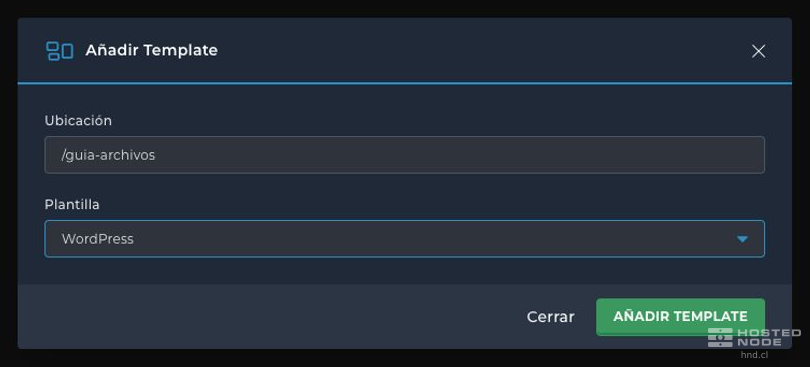
Add Template form with the Location and Template fields.
Associate a URL location with the template for the application installed there.

Click Add Template and check that the table shows the correct location and name.

Nginx Template table with a location and its associated WordPress template.
The table lets you review which template applies to each location.

4. Check the site

Wait for the configuration to take effect and visit the site location. Check the home page and an internal application URL; if the template affects caching or dynamic content, check those functions as well.

If a validation error appears, correct the indicated value before saving. If the site stops working as expected, return to the tool and compare the template and its location with the previous selection. To remove an association, select its row and use Delete; Disable changes the feature's status for the domain. Check the site again after any change.