

DocumentationWhat payment methods does Hostednode accept?What are Hostednode's billing cycles?When is the monthly renewal charge generated?When are services suspended for non-payment?When is a service deleted for non-payment?What should you do if a payment method is unavailable?Are all services subject to VAT?Do you issue receipts or invoices?How to create a customer account on HostednodeDo you accept cryptocurrency payments?How to Access DirectAdmin and Explore the Panel’s Main FeaturesHow to Configure PHP for Subdomains and Additional Domains in DirectAdminHow to change the PHP version and settings in DirectAdminHow to Create an Email Account in DirectAdminHow to use the DirectAdmin API with Codex or ClaudeHow to Enable and Use Redis in DirectAdminHow to add a domain alias and use it for email in DirectAdminHow to Add an Additional Domain in DirectAdminHow to Add an Additional User to an Existing Database in DirectAdminHow to configure an autoresponder in DirectAdminHow to Set Up a Vacation Message in DirectAdminHow to Create a Subdomain in DirectAdminHow to Create a Cron Job in DirectAdminHow to create a database and associate its user in DirectAdminHow to Create an FTP Account in DirectAdminHow to Create a Mailing List in DirectAdminHow to create an email forwarder in DirectAdminHow to Create a Site Redirect in DirectAdminHow to Install WordPress with Softaculous WordPress Management in DirectAdminHow to Install WordPress with the DirectAdmin WordPress ManagerHow to Modify MX Records to Use Google Workspace in DirectAdminHow to Review the Web Application Firewall and Create a Rule Exception in DirectAdminHow to Check Account Resource Usage in DirectAdminHow to Use the ClamAV Antivirus from DirectAdminHow to Create Custom DNS Records in DirectAdmin: DKIM, SPF, and DMARCHow to use the built-in terminal in DirectAdminHow to Create a Password-Protected Directory in DirectAdminHow to Create a DMARC Record in DirectAdminHow to Create an SPF Record in DirectAdminHow to Install and Deploy a Node.js Application with NGINX Unit in DirectAdminHow to Install and Deploy a Python Application with NGINX Unit in DirectAdminHow to Use the DirectAdmin File ManagerHow to view site logs in DirectAdmin’s Site Summary and LogsHow to Enable Two-Step Authentication in DirectAdminHow to Set Up an SSH Key with DirectAdminHow to Use Backup and Restore in DirectAdminHow to Use DirectAdmin Nginx Templates
TUTORIAL

How to Use the DirectAdmin File Manager

Browse your hosting folders, upload and edit files, use file actions, and restore items from the Trash.

File Manager lets you manage your account's files from your browser. Always work in the domain path that corresponds to the site, and keep a copy before replacing important content.

The control panel address, server name, domain, username, versions, limits, and available tools may vary depending on your service. Use the details in your hosting welcome email.

1. Open and get to know File Manager

On the dashboard, open System Info & Files → File Manager. The tree on the left lets you browse folders; the path at the top confirms where you are working.

Location of File Manager within System Info & Files.
Open File Manager from the DirectAdmin dashboard.

For the site's published files, open domains, the corresponding domain, and public_html. You can select a folder in the tree or open it by double-clicking it in the list. Your account root contains other service folders that are not part of the website.
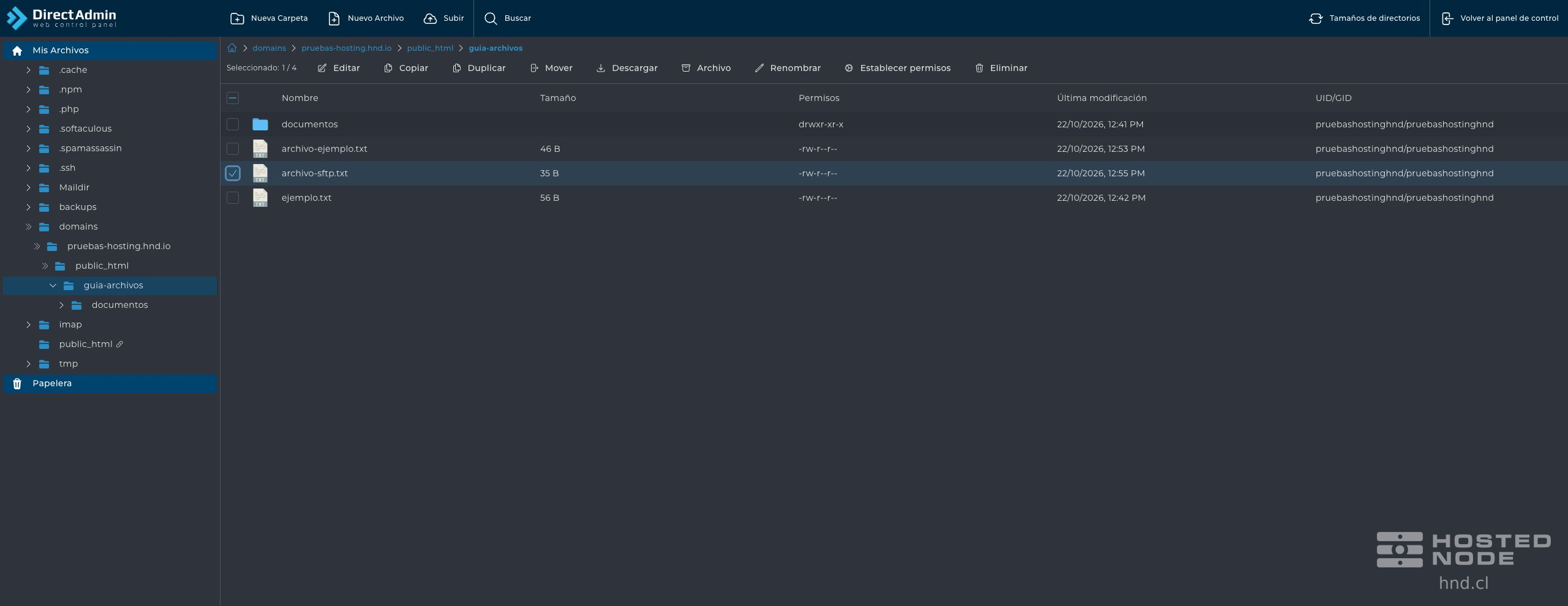
File Manager showing the path to a site folder, its files, and the toolbars.
Check the path before creating, uploading, or modifying a file.

2. Create folders and files

In the destination folder, click New Folder, enter its name, and confirm with Create. For a text file, use New File and enter its name with the appropriate extension. Check the result in the list before continuing.

3. Upload files from your computer

Click Upload and select the files from your computer. In Upload Files, check their names and click Start Upload. Wait until the upload reaches 100% and confirmation appears; then click Done.
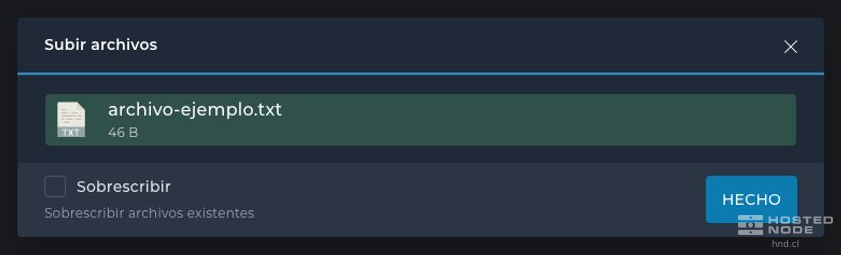
Upload Files window showing a file completed at 100% and the Done button.
The upload confirmation and 100% indicate that the file has finished uploading.

The Overwrite option replaces existing files with the same name. Enable it only when you want to replace them and have a copy of the previous version. Check the file size limit supported by your service if an upload is rejected.

4. Select items and use actions

Select the checkbox next to a file. The toolbar enables the actions available for the selection. Some options appear under More or in the context menu, depending on the available space.

  • Download saves a copy to your computer.

  • Copy and Duplicate create another copy; check the destination or new name requested by the dialog.

  • Move changes the destination directory.

  • Rename changes the item's name. Check your website's references before renaming files used by the site.

  • Archive lets you create compressed archives.

  • Set Permissions modifies the permissions of a file or folder. Change them only when you know your application's requirements, and avoid applying broad permissions indiscriminately.

5. Edit a text file

Select the file and click Edit. Check its name and path in the editor, modify the content, and click Save. Wait for the Saved indicator before leaving. Editing configuration files can affect the site immediately.

DirectAdmin text editor showing the name, path, and contents of ejemplo.txt.
Confirm which file is open and save your changes before closing the editor.

6. Delete and recover items with Trash

Select the item and click Delete. In the dialog, keep Move to Trash selected if you want to be able to recover it. Without that option, deletion is permanent.
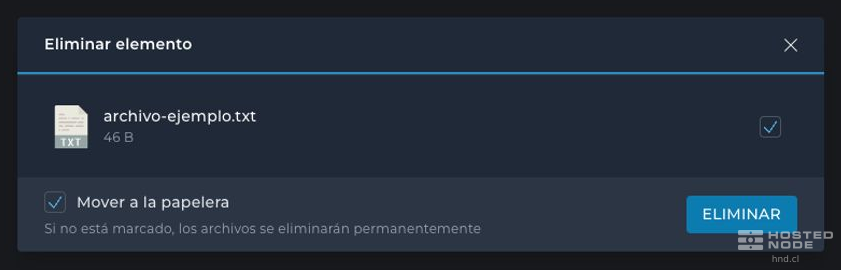
Delete Item dialog with Move to Trash enabled.
Check the name and keep Move to Trash selected to allow recovery.

To recover it, open Trash in the left-hand tree, select the item, and click Restore. Check that it has returned to its original directory. Delete Permanently prevents recovery through this tool; emptying Trash is not a substitute for a backup strategy.