

How to Install and Deploy a Node.js Application with NGINX Unit in DirectAdmin
Prepare a Node.js application, configure it in NGINX Unit, create its route, and verify the deployment. Requires a plan with Terminal/SSH.
Nginx Unit lets you run a Node.js application from DirectAdmin and serve its requests through your hosting domain. Deployment involves the application files, its runtime configuration, and the route that receives visitors.
The panel address, server name, domain, username, versions, limits, and available tools may vary depending on your service. Use the details in your hosting welcome email.
To open the panel's console and navigate between folders, see How to use the terminal included in DirectAdmin
1. Check the requirements and prepare the folder
Open System Info & Files → Terminal and connect to the console. Check the available version with node --version and npm --version. Verify that your application supports that version; this procedure does not install or update Node.js on the server.
Use a new folder outside public_html to store the code and its dependencies. Replace tudominio.example with your actual domain before running these commands:
DOMINIO="tudominio.example"
mkdir "$HOME/domains/$DOMINIO/node-tutorial"
cd "$HOME/domains/$DOMINIO/node-tutorial"
For a first application without additional dependencies, create app.js in that folder using File Manager and save this content:
#!/usr/bin/env node
const http = require('http');

http.createServer((req, res) => {
  res.writeHead(200, {'Content-Type': 'text/plain; charset=utf-8'});
  res.end('Aplicacion Node.js funcionando con Unidad Nginx\n');
}).listen();
Return to Terminal, navigate to the application folder, and check the file:
node --check app.js
chmod 755 app.js
If you are deploying an existing project with package.json, upload its files to the application folder and install the project's required dependencies with npm install --omit=dev. If it needs a build step, follow its instructions and prepare the resulting entry file. First, check that the project is compatible with Node.js and the Nginx Unit integration available on your hosting.
2. Create the application in Nginx Unit

Return to the dashboard. Under Advanced Features, open Nginx Unit and click Create Application.
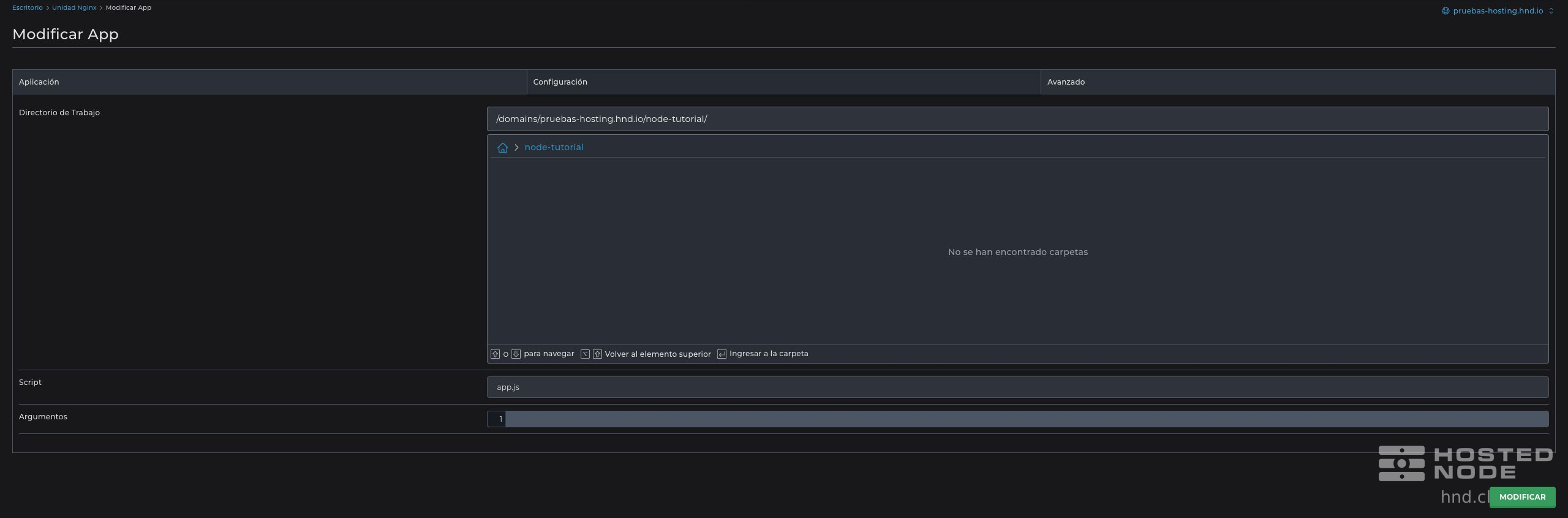
Name: nodetutorial. Use a simple name without spaces or hyphens.
Type: Node.js.
Working Directory: select the domain's node-tutorial folder. In the panel's folder selector, the path is shown relative to your account's root, for example /domains/TU_DOMINIO/node-tutorial/.
Script: app.js. Enter the name relative to the Working Directory, without adding the full path again.
Arguments: do not add any custom arguments for this example.
Click Create and wait for confirmation. DirectAdmin prepares execution and integration with Nginx Unit. The application should appear in the list with its name and associated folder.
3. Create the site route
In Nginx Unit, click Create Route and select nodetutorial under Application. To publish this example only under /node-tutorial/, open the JSON tab and check that the rule includes both the URL match and the application destination.
[
  {
    "match": {"uri": "/node-tutorial/*"},
    "action": {"pass": "applications/tudominio.example_nodetutorial"}
  }
]
Replace tudominio.example with the domain shown in the panel and retain the actual application identifier suggested by DirectAdmin. If other rules already exist, keep their entries and add the new one to the list; do not replace the entire configuration with this example. A rule without match may send all requests for that domain route to the application.
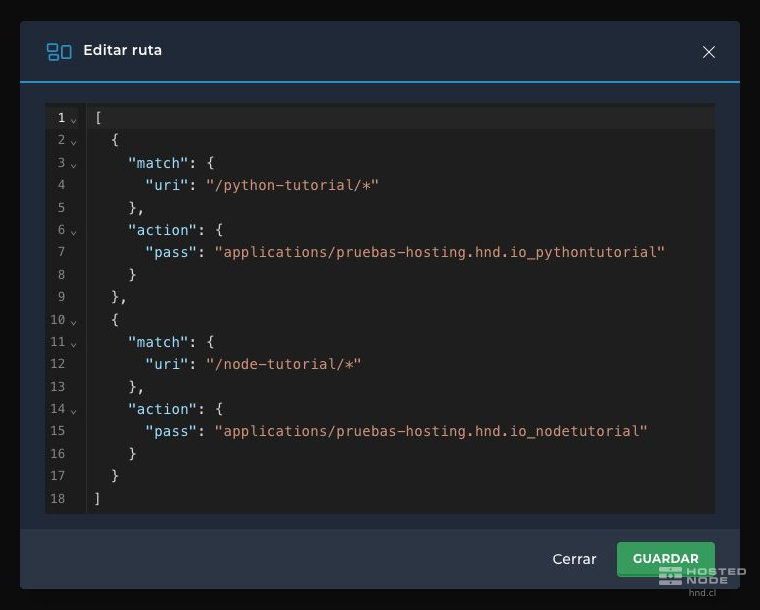
Click Create or Save, depending on the dialog you are using. The domain route should appear in the Routes section. Wait a few moments for the web configuration to take effect before checking it.
4. Check the application
Open your domain's HTTPS address ending in /node-tutorial/. With the file from this article, you should receive this text:
Aplicacion Node.js funcionando con Unidad NginxNginx Unit manages process execution. After checking the response, you can close Terminal; the console does not need to remain open to serve the site.
If you receive a 404, check the domain, URL prefix, and rule you created. If the application does not start or returns a 503, check the entry file, its permissions, the version, and the dependencies. If DirectAdmin refuses to save or indicates that a file does not exist, correct that detail before continuing. If the required integration is unavailable, contact support without modifying the server configuration.