

How to configure a DirectAdmin hosting email account in Outlook for Windows
Add your email account to the new Outlook for Windows using encrypted IMAP and SMTP, review synchronization with Microsoft, and test sending and receiving.
This guide uses the new Outlook for Windows and an email account created in your hosting account. The screens and menus in classic Outlook are different.
The control panel address, server name, domain, username, versions, limits, and available tools may vary depending on your service. Use the details in your hosting welcome email.
1. Gather your mailbox details
You need Outlook installed and an active mailbox in DirectAdmin. The address must exist, and you must use that mailbox's password, which may differ from your main hosting password. Also check that the domain's email service is configured.
Setting | Value to use |
|---|---|
Address and username | The full mailbox address, for example name@YOUR_DOMAIN. |
Password | The mailbox password. |
Incoming IMAP server | The mail server name specified for your service. |
IMAP port and encryption | 993 with SSL/TLS. |
Outgoing SMTP server | The mail server name specified for your service. |
SMTP port and encryption | 465 with SSL/TLS. |
SMTP authentication | The full address and password for the same mailbox. |
The values shown correspond to the encrypted configuration used in this guide. Use the details provided for your hosting if they differ. The server shown in the screenshots is an example and does not necessarily correspond to your service.
2. Add the email address
Open Outlook. If this is your first account, enter the full address on the welcome screen and click Continue. If you already use another account, select Add account in the folder pane to begin.
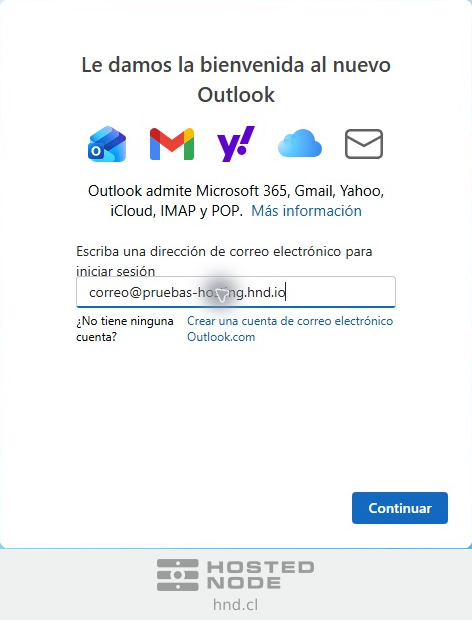
Check that the selected provider is IMAP. If Outlook shows another provider, use Select provider and choose IMAP. This protocol keeps messages and folders synchronized with the server.
3. Configure IMAP and SMTP
On the IMAP screen, enter the mailbox password. Enable Show more to review the settings and disable Use recommended settings if you need to correct the automatically detected servers.

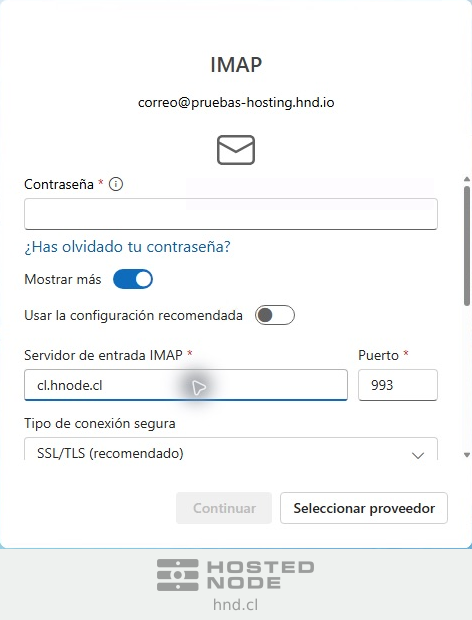
Under IMAP incoming server, enter the mail server, use port 993, and select SSL/TLS. Scroll within the form to review the outgoing section.
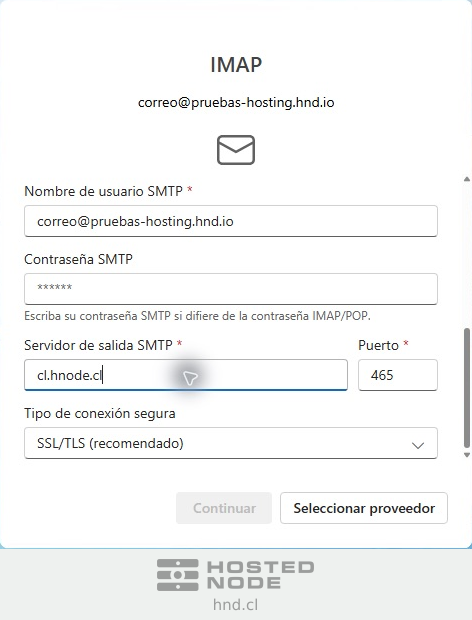
Under SMTP username, keep the full mailbox address. SMTP password is used if it differs from the IMAP/POP password; for the same mailbox and password, you do not need a different password. Under SMTP outgoing server, enter the specified server, use port 465, and select SSL/TLS. Click Continue.
4. Review synchronization with Microsoft
The new Outlook displays Sync your IMAP account and explains that it needs to synchronize emails with Microsoft Cloud. Contacts and events you create in Outlook are also saved in Microsoft Cloud. Read the notice and continue only if you agree to this synchronization; Cancel stops the account from being added.
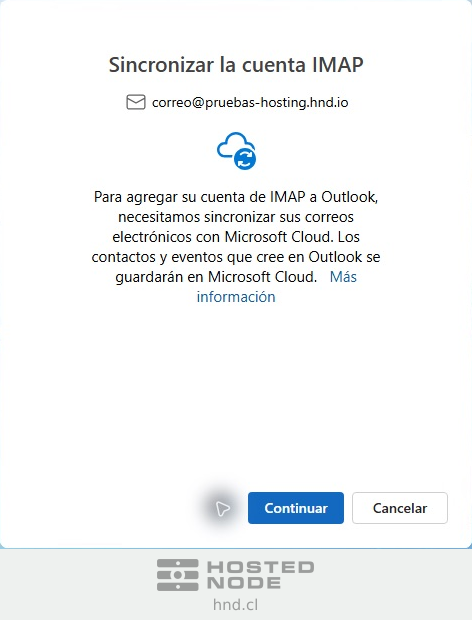
If you continue, wait for Outlook to finish preparing the account and display its folders. The initial synchronization may take some time depending on the number of messages and your connection.
5. Check sending and receiving
Click New to compose a short message addressed to your own address. Fill in the subject and message, confirm the recipient, and click Send. Check that the message appears in Sent Items and then in Inbox.
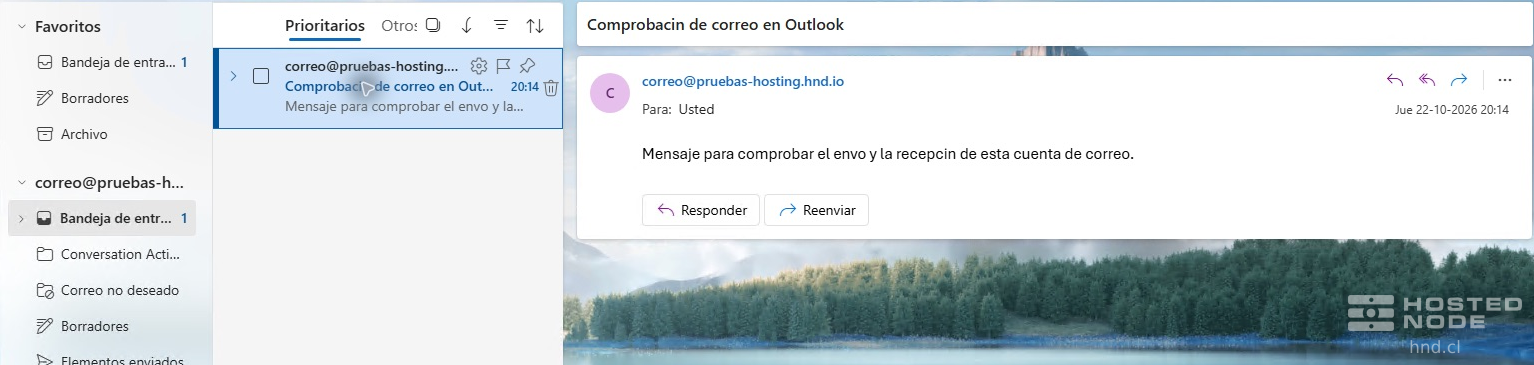
If you cannot find it, also check Other, Junk Email, and Outbox. Seeing the account in Outlook is not enough to verify both functions: check that sending has finished and that the message has arrived in the mailbox.
If setup fails
Password rejected: check the full address and mailbox password, avoiding extra spaces.
Not receiving messages: check the IMAP server, port, encryption, available storage space, and the domain's email configuration.
Receiving but not sending: check SMTP, the full address as the username, the password, and encryption.
Certificate warning: check the server name provided for the service; do not disable SSL/TLS to continue.
If the domain's email service is not operational, correct its configuration before trying to add the account again.