

How to identify your DirectAdmin hosting directories and locate public_html
Identify the folders in your hosting account via DirectAdmin, SFTP, FTP, or SSH and find the public_html directory for the correct domain.
When you access your hosting account, you will find folders for the website, email, and the tools your account uses. This guide explains how to identify them and locate the directory where each domain's public files are stored.
The control panel address, server name, domain, username, versions, limits, and available tools may vary depending on your service. Use the details in your hosting welcome email.
1. Identify your account root
The home directory contains your user's files. Its usual path on the server is /home/YOUR_USERNAME. The names YOUR_USERNAME and YOUR_DOMAIN are placeholders: replace them with your hosting details.
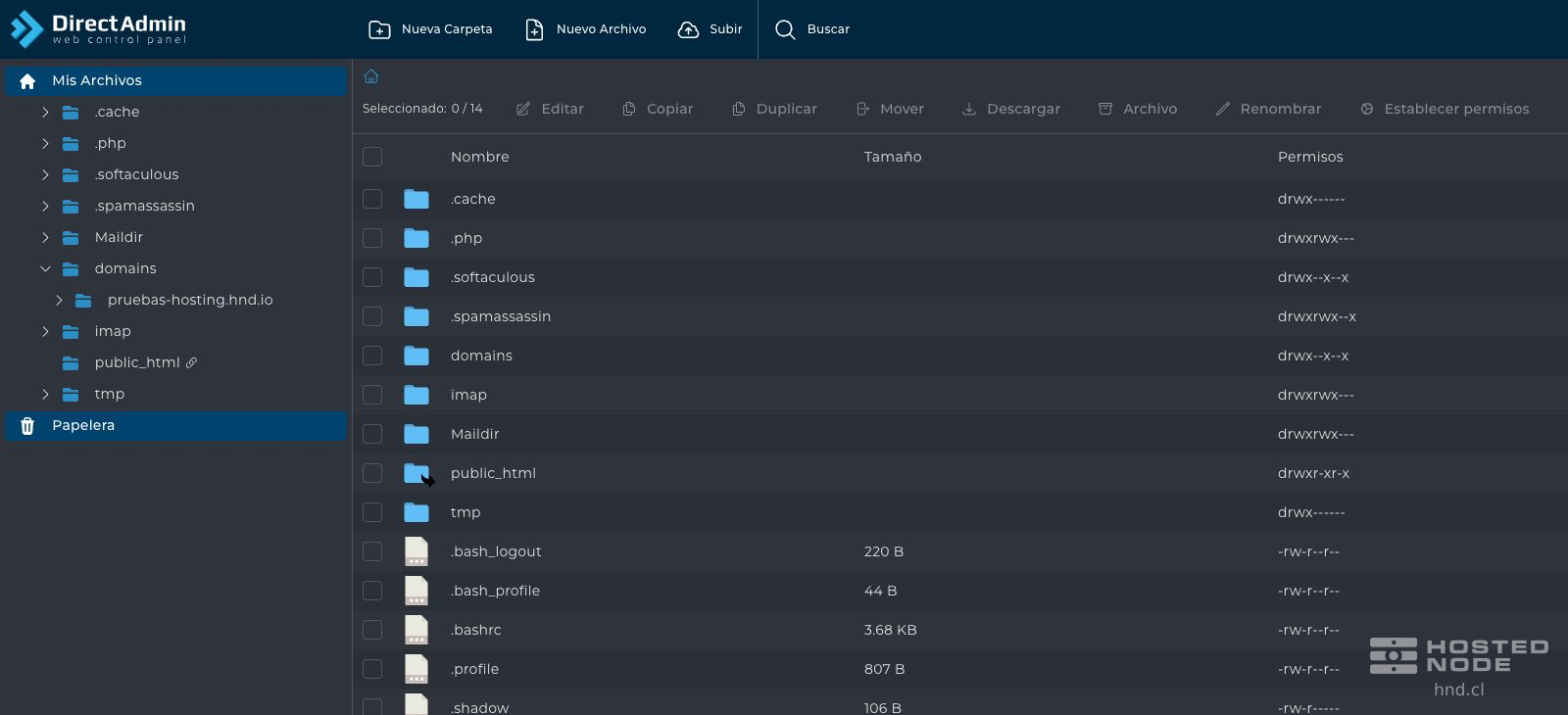
File Manager: My Files corresponds to your account root. Paths in the control panel are shown relative to that location.
SFTP and SSH: these normally start in the home directory and may display the full path /home/YOUR_USERNAME. They require a plan with Terminal/SSH access enabled.
FTP: / represents the root directory allowed for that FTP account. The main account may display the home directory; a restricted additional account may open directly in a website folder.
These are ways to access the same files on the server. Changing, uploading, or deleting a file using one of these tools affects the content you see through the others, provided they have permissions for that same path.
2. Find your domain's public_html directory
On the DirectAdmin dashboard, open System Info & Files → File Manager. From My Files, open domains, then the relevant domain, and finally public_html. You can open each folder in the list by double-clicking it.

/home/TU_USUARIO/domains/TU_DOMINIO/public_htmlIn File Manager, this same location appears as /domains/YOUR_DOMAIN/public_html because the control panel is already inside your account. In FTP, it may appear as /domains/YOUR_DOMAIN/public_html or simply / if the account was restricted directly to that folder.
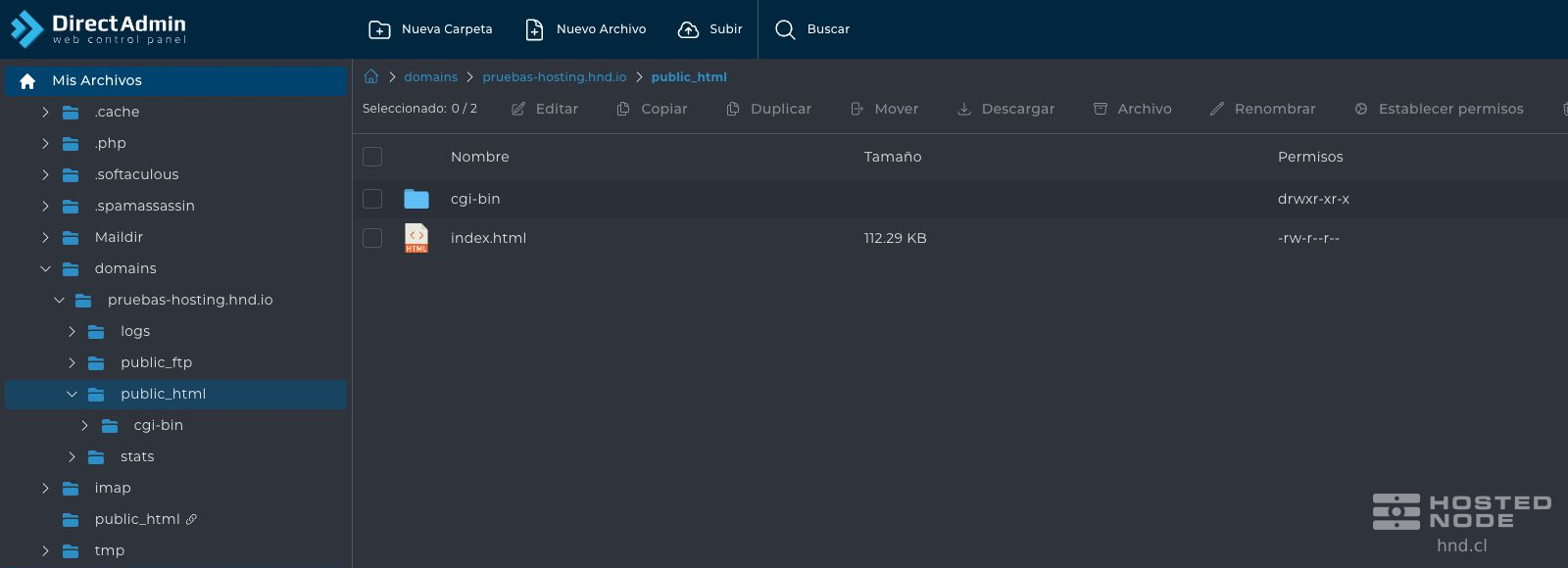
public_html contains the files the server uses to serve that domain's website, such as index.html or index.php and the application folders. A path such as public_html/imagenes/foto.jpg normally corresponds to /imagenes/foto.jpg within the domain's address, depending on the site's rules.
3. Understand the public_html shortcut in the home directory
Some accounts also show public_html directly inside My Files. It may be a symbolic link to domains/PRIMARY_DOMAIN/public_html: it provides access to the same directory rather than a second copy of the website.
If you have multiple domains, use domains → YOUR_DOMAIN → public_html to avoid working on the wrong website. The public_html shortcut in the home directory does not automatically represent all the domains in the account.
4. What each directory does
The visible folders depend on the enabled services and how the account is used. Names beginning with a dot are hidden; some clients let you display them using their hidden files option.
Directory in home | Purpose |
|---|---|
domains | Contains the domains' directories and their website data. Each domain directory contains public_html. |
public_html | When it is a symbolic link, it opens the primary domain's public_html directory. Check its target before using it. |
imap | Contains the data and messages for the domain's email accounts, normally organized as imap/DOMAIN/ACCOUNT/Maildir. Manage email through your email client, webmail, or DirectAdmin tools. |
Maildir | Stores email for the user's system account. It does not contain the website's public files. |
tmp | Stores temporary files from account processes and tools. It is not the destination for website files. |
.trash | Stores items sent to the File Manager Trash. The Trash option lets you manage and restore them. |
.cache | Stores caches and supporting data for the user's tools. Its contents depend on the programs used. |
.php | On this service, it contains logs of email activity generated by PHP, such as php-mail.log and its rotated files. It is not the folder for publishing the website's PHP files. |
.softaculous | Stores management data for installers and associated tools, such as Softaculous or SitePad. It does not replace the published application's directory. |
.spamassassin | Stores the account's spam filter preferences. Use the control panel's email options to manage them. |
If you have configured SSH keys, .ssh may also exist to hold that user's authentication files. You do not need to create it to browse folders, and you should not treat it as a public directory.
Files such as .bashrc, .bash_profile, or .profile contain user session settings; they are not directories. Do not replace them when uploading your website files.
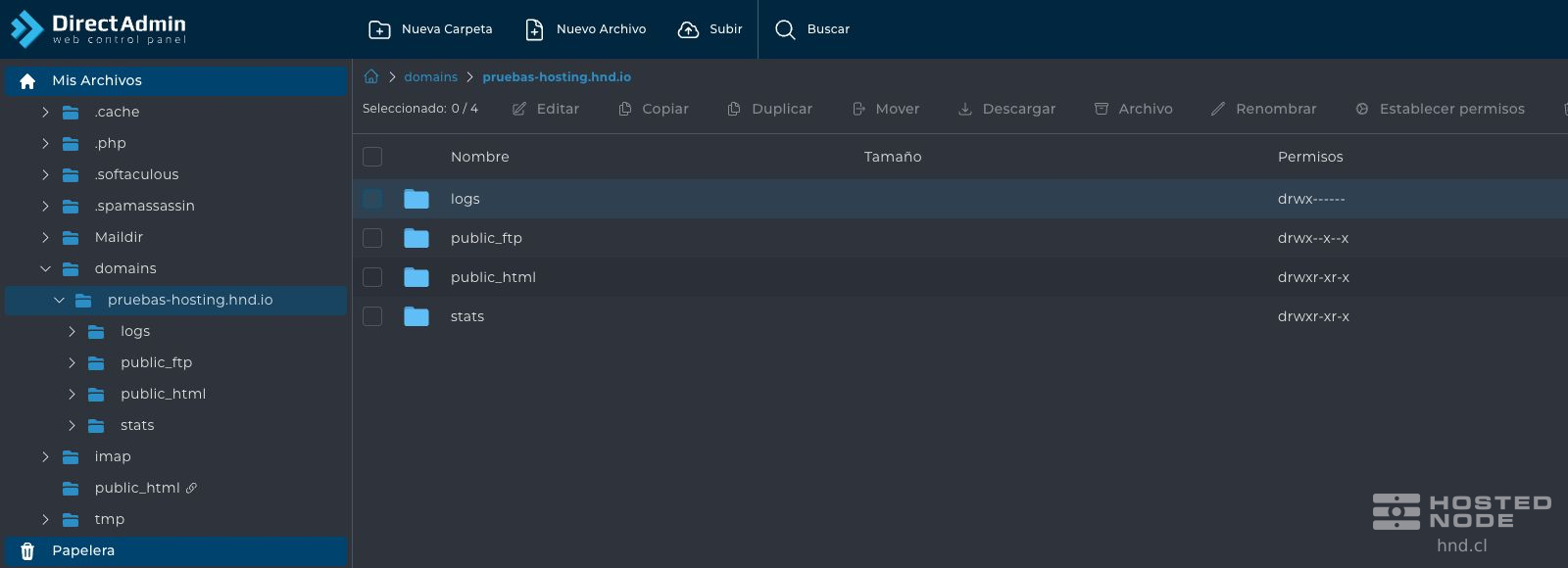
5. Folders you will find inside each domain
Domain directory | Purpose |
|---|---|
public_html | Public files for that domain's website. This is the usual destination when uploading a website. |
logs | Website logs. You can also view them through Site Summary / Statistics / Logs in DirectAdmin. |
stats | Domain statistics files generated by the tools available on the service. |
public_ftp | An area reserved for the public FTP service when enabled. Its existence alone does not enable anonymous access, and it is not the web publishing directory. |
Before modifying or deleting content
Check the username, domain, and full path.
Upload the website to the correct domain's public_html directory. A folder outside public_html is not automatically published just because it is inside your account.
Manage mailboxes, filters, statistics, and other features using the appropriate tools; avoid deleting their folders to free up space without knowing what they do.
Do not place passwords, private keys, or private backups inside public_html.
If a folder does not appear or the service uses a different structure, check its configuration before creating it or moving files.