

How to connect to your DirectAdmin hosting via SSH with PuTTY
Configure PuTTY on Windows using the details in your welcome email, verify the server's identity, and access your hosting via SSH. Requires a plan with Terminal/SSH.
PuTTY is an SSH client for Windows. It lets you open a server console and run commands with your hosting account's permissions.
The control panel address, server name, domain, username, versions, limits, and available tools may vary depending on your service. Use the details in your hosting welcome email.
To open the control panel console and find your way around folders, see How to use the terminal included in DirectAdmin
1. Gather your login details
Have PuTTY installed on your Windows computer and gather the details sent in your service welcome email:
Server: the server name specified for SSH connections.
Username: the main hosting account with SSH access enabled.
Password: that account's password, or the corresponding private key if you use key-based authentication.
Port: the SSH port sent in your service welcome email.
Enter your service's port exactly as provided. The DirectAdmin and FTP ports are not necessarily the same as the SSH port. If you cannot find this information, ask support.
2. Configure the session in PuTTY
Open PuTTY. In the Session category, enter the server name in Host Name (or IP address) and the port from your welcome email in Port. Under Connection type, select SSH.

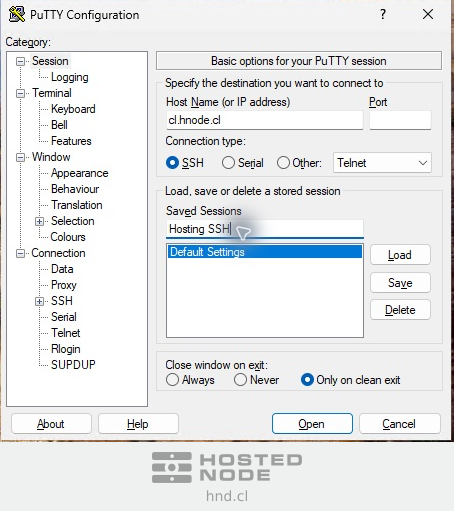
If you want to reuse the configuration, enter a name in Saved Sessions and click Save. To retrieve it later, select its name and click Load. This profile saves the session details; you enter the password when connecting.
3. Open the connection and verify the identity
Click Open. On the first connection, PuTTY Security Alert may appear with the server's key fingerprint. Compare it with the information confirmed by support through a trusted channel.
If it matches, Accept saves that identity for future connections. Connect Once lets you continue for that connection only. If you cannot verify it, use Cancel and contact support. A changed-key alert also requires checking the cause before continuing.
4. Enter your username and password
At login as: enter your hosting username and press Enter. When PuTTY asks for your password, type it and press Enter again. It is normal not to see letters, dots, or asterisks while entering it.
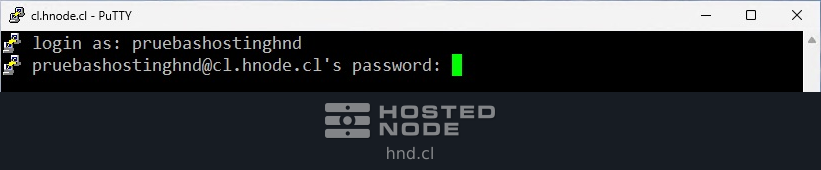
If you use a key, go to Connection → SSH → Auth → Credentials before opening the session and select your private key. PuTTY uses the .ppk format. Enter that key's passphrase when prompted; do not select the .pub public key file.
5. Check that you are in the correct account
A successful connection displays the remote account's command prompt. These commands let you check the username, current folder, and its files:
whoami
pwd
ls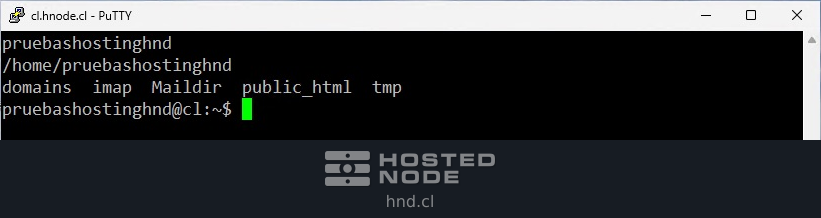
Commands in this window run on the server, not on your Windows computer. Check the folder and the scope of each action before modifying or deleting data.
6. Close the session
To finish, type exit and press Enter. The SSH session will close; with PuTTY's usual settings, its window will also close.
exitIf you cannot connect
Connection timed out or Connection refused: check the server, the port in your welcome email, your connectivity, and that SSH is enabled for the account.
Access denied: check the username, password, or selected private key.
If a warning about the server's identity appears, verify the fingerprint before continuing.
If your plan does not include Terminal/SSH, check its terms before attempting to start a session.