

How to connect to your DirectAdmin hosting via SFTP
Connect via SFTP from Windows using FileZilla or WinSCP, verify the server's identity, and upload or download files. Requires a plan with Terminal/SSH.
SFTP transfers files over an encrypted SSH connection. This guide covers two clients for Windows: FileZilla Client and WinSCP. Choose whichever you prefer; you do not need to use both.
The control panel address, server name, domain, username, versions, limits, and available tools may vary depending on your service. Use the details in your hosting welcome email.
To learn about the hosting service's integrated console, also see How to use the terminal included in DirectAdmin
Before you begin: details and destination
Install the client you intend to use and gather the details from your service welcome email:
Host: the server name specified for SSH/SFTP.
Username: the main hosting username with SSH access enabled.
Password: the password for that account.
Port: the SSH/SFTP connection port provided in your service welcome email.
Use the exact port for your service. Do not replace it with the DirectAdmin control panel port or the FTP port. If you cannot find this information, request it from support.
Also identify the destination folder. A domain's public files are usually located in domains/YOUR_DOMAIN/public_html. Check the domain and keep a backup before replacing existing content.
Option A: FileZilla Client
A.1. Create the SFTP profile
Open File → Site Manager and click New site. Enter a name that helps you identify the hosting service.
Protocol: select SFTP - SSH File Transfer Protocol.
Host: enter the server name from your welcome email.
Port: enter the SSH/SFTP port specified for your service.
Logon Type: select Ask for password.
User: enter the hosting username with SSH access.

SFTP and FTP are different protocols. Choosing FTP with TLS is not the same as using SFTP. With Ask for password, FileZilla requests the password when connecting instead of saving it in the profile.
A.2. Connect and verify the identity
Click Connect and enter the password when prompted. You can uncheck Remember password until FileZilla is closed if you do not want to keep it in memory during that session.
On the first connection, an Unknown host key message may appear. Compare the server key fingerprint with the information confirmed by support through a trusted channel. Continue only if it matches. A changed key warning also requires you to check the cause.
A.3. Open the local and remote folders
The left pane represents your computer; the right pane represents the server. Under Local site, select the folder containing the file you want to send. Under Remote site, open the domain's folder and then public_html or the appropriate destination subdirectory.

A.4. Upload and download files
To upload, select the file in the left pane and choose Upload from its context menu, or drag it to the remote directory. Wait for the queue to finish and check Successful transfers and Failed transfers. Verify that the file appears in the remote pane.

To download, first select the destination folder in the left pane. Then open the remote file's context menu and choose Download, or drag it to the local pane. Check that the file appears in that folder on your computer.
If an overwrite confirmation appears, check the name, size, and date before replacing the file. When you finish, disconnect from the server.
Option B: WinSCP
B.1. Set up a new site
Open WinSCP and select New Site in the Login window. Option names may appear in Spanish or English depending on the installation.
File protocol: select SFTP.
Hostname: enter the server name provided in your welcome email.
Port number: enter the SSH/SFTP port specified for your service.
Username: enter the hosting username with SSH access.

Click Login and enter the password when prompted. If you use Save to save the site, save the connection details without storing the password.
B.2. Verify the identity and paths
On the first connection, WinSCP may ask you to confirm the server key. Compare its fingerprint with the information confirmed by support. If it does not match or you cannot verify it, cancel the connection and contact support before continuing.
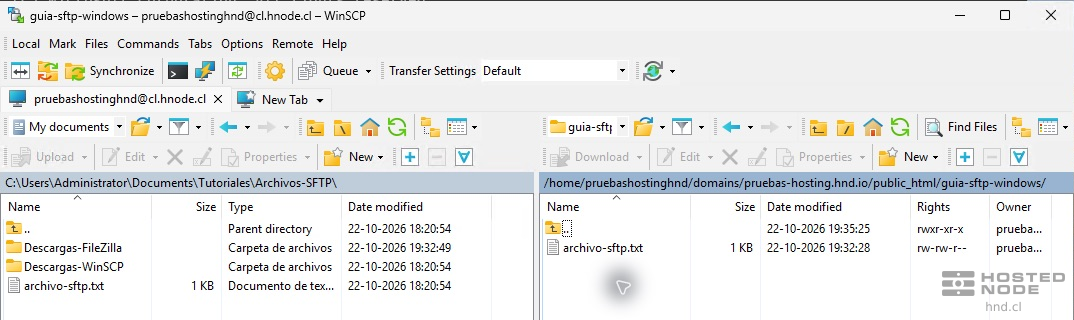
In the two-pane view, the left pane shows your local files and the right pane shows the server's files. In the remote pane, open domains, the correct domain, and public_html, or the appropriate destination folder. In the local pane, select the folder on your computer.
B.3. Upload a file
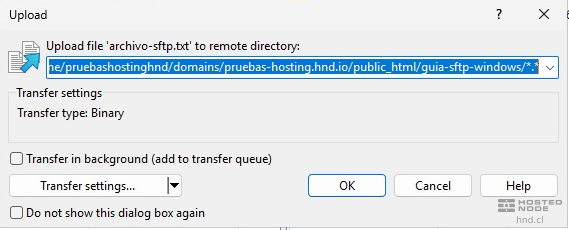
Select the local file and choose Upload or drag it to the remote pane. In the confirmation dialog, check the destination directory before accepting. Wait for the operation to finish and check the name and size in the remote pane.
B.4. Download and close the session
Select the remote file and choose Download or drag it to the local pane. Check the destination folder on your computer in the confirmation dialog and verify that the download has finished. If a file with the same name already exists, carefully confirm whether you want to replace it.
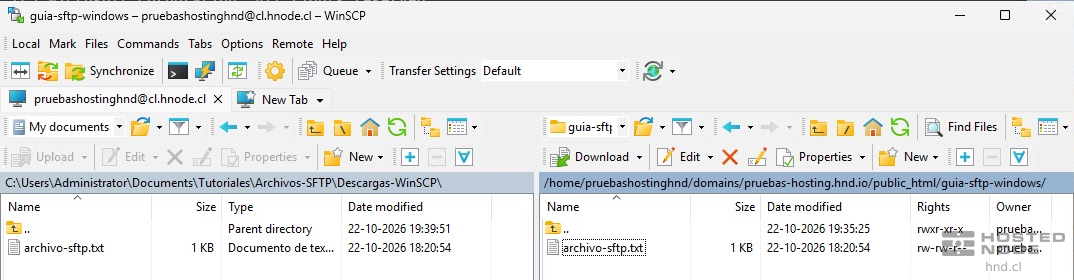
When you finish, close the SFTP session tab using its close button. WinSCP returns to the Login window if no sessions remain open.
If the connection or transfer fails
Connection timed out or refused: check the server, the port in your welcome email, connectivity, and whether your plan has SSH access enabled.
Authentication rejected: check the main username and password. Do not automatically use an additional FTP account.
Permission denied during transfer: check the folder and your account's permissions.
File not found: check the local or remote path in the corresponding pane.
An error in the transfer queue requires you to review its message and check the file; an open connection does not prove that the copy has finished.