

How to configure a DirectAdmin hosting email account in Mozilla Thunderbird for Windows
Set up your hosting mailbox in Thunderbird for Windows with IMAP and SMTP, use SSL/TLS connections, and verify that you can send and receive email.
Mozilla Thunderbird lets you use your hosting email account on Windows. This guide sets up an existing account using IMAP to synchronize messages and folders with the server.
The control panel address, server name, domain, username, versions, limits, and available tools may vary depending on your service. Use the details in your hosting welcome email.
1. Prepare your account details
Have Thunderbird installed and an active mailbox in DirectAdmin. You need the full email address, the mailbox's own password, and the mail server name specified for your service. Do not automatically use your main hosting password.
Parameter | Incoming IMAP | Outgoing SMTP |
|---|---|---|
Server | The mail server specified for your hosting service. | The mail server specified for your hosting service. |
Port | 993 | 465 |
Connection security | SSL/TLS | SSL/TLS |
Authentication method | Normal password | Normal password |
Username | The full email address of the mailbox. | The same full email address of the mailbox. |
These values correspond to the encrypted configuration in this guide. Use the details provided for your service if they differ. Normal password is the name of the authentication method in Thunderbird; it is used with SSL/TLS to protect the connection.
2. Add your email address
When you open Thunderbird for the first time, the wizard for adding an email address appears. In Full name, enter the name recipients will see, and in Email address, enter the full email address of your mailbox. Click Continue.
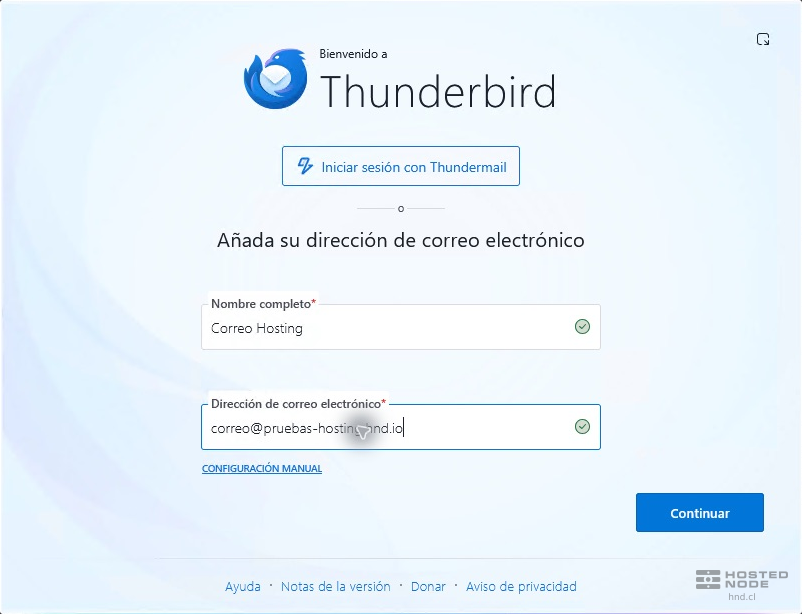
The Sign in with Thundermail option is for that service. For your hosting account, use the email address fields in the wizard.
3. Review the detected configuration
Thunderbird searches for the account settings. Select IMAP and check the incoming and outgoing server details. If they do not match those for your service, click Edit configuration.
Under Incoming server, enter the server name provided for your hosting service and keep the full email address in Username. Select Normal password as the authentication method.
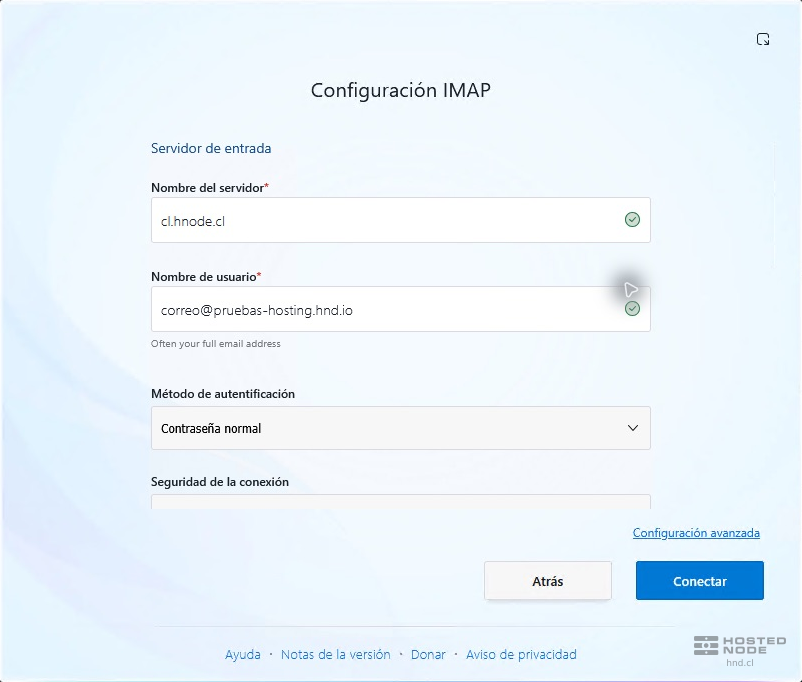
Scroll within the form and check Connection security: SSL/TLS and Port: 993.

4. Configure the outgoing SMTP server
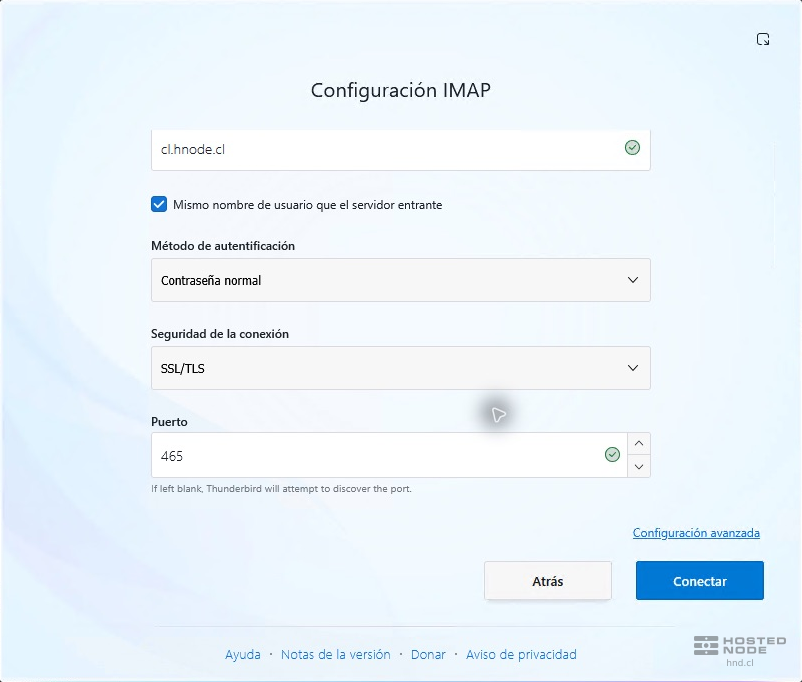
Continue scrolling to Outgoing server. Enter the SMTP server specified for your service, leave Same username as incoming server selected when both use the full email address of the same mailbox, and select Normal password.
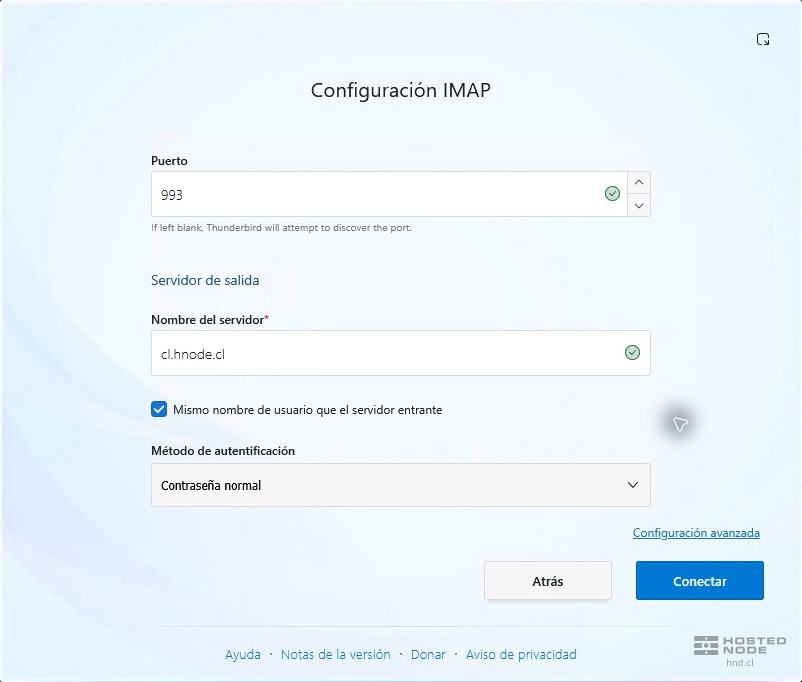
Under Connection security, select SSL/TLS and use port 465. Click Connect. If Review updated configuration appears with Valid configuration settings, review the values and click Connect again to continue.
5. Enter your password and finish
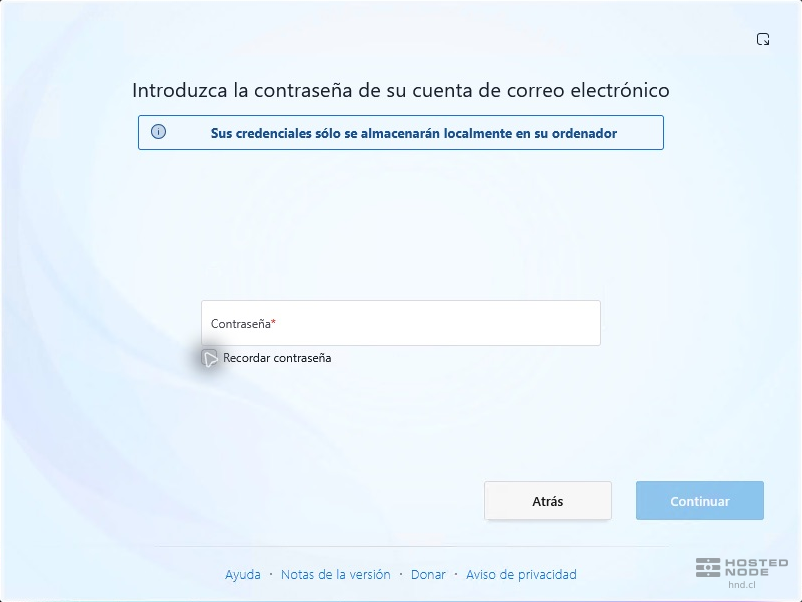
When prompted, enter the mailbox password. If you do not want to save it on the computer, clear Remember password; Thunderbird may ask for it again when starting a session or sending mail. Click Continue and wait for the connection.
On the final screen, click Finish. The account should appear in the folder pane. Open Inbox and wait for the initial synchronization to finish.
6. Check that you can send and receive
Click New message, enter your own address as the recipient, and add a short subject and message. Check the recipient and click Send. If Thunderbird asks for the SMTP password again, use the password for the same mailbox.

Check that the message leaves the queue, appears in Sent, and arrives in Inbox. If you do not see it immediately, use Get Messages and check the junk folder.
If you cannot complete the connection
Authentication rejected: check the full email address and mailbox password.
Not receiving mail: check the IMAP server, port 993, SSL/TLS, available mailbox space, and the domain's email service.
Receiving but not sending: check SMTP, port 465, SSL/TLS, and authentication using the full mailbox username.
Certificate warning: check the server name specified for your hosting service before continuing. Do not disable encryption to avoid the warning.
If Thunderbird cannot find a valid configuration, review your service details before creating the account using advanced options.