

How to connect to your DirectAdmin hosting via FTP with FileZilla and WinSCP on Windows
Set up FTP with explicit TLS in FileZilla or WinSCP for Windows, enable passive mode, and upload or download files from your hosting.
This guide explains how to connect to your hosting using FTP with explicit TLS, also called explicit FTPS, from FileZilla Client or WinSCP on Windows. Choose whichever client you prefer; you do not need to use both.
The control panel address, server name, domain, username, versions, limits, and available tools may vary depending on your service. Use the details in your hosting welcome email.
Before you begin
Install FileZilla Client or WinSCP and gather the FTP details for your service or for the FTP account created in DirectAdmin:
Host: the FTP server name specified for your service.
Username: the full FTP username. An additional FTP account may have a different name from the main hosting username.
Password: the password for that FTP account.
Port: the FTP port specified for your service; explicit FTP over TLS normally uses 21.
Identify the destination folder before transferring. With the main account, you may find domains/TU_DOMINIO/public_html. A restricted FTP account may open directly in its assigned folder and not display other paths. The / in the client represents the root directory allowed for that account.
Use the server name to verify its certificate. Do not replace the FTP port with the control panel or SSH port. Keep a backup before replacing files on your site.
Option A: FileZilla Client
A.1. Create the encrypted FTP profile

Open File → Site Manager, click New site, and enter a name to identify your hosting. Complete the General tab:
Protocol: FTP - File Transfer Protocol.
Host: the FTP server for your service.
Port: the specified FTP port, normally 21.
Encryption: Require explicit FTP over TLS.
Logon Type: Ask for password.
User: the full FTP account username.
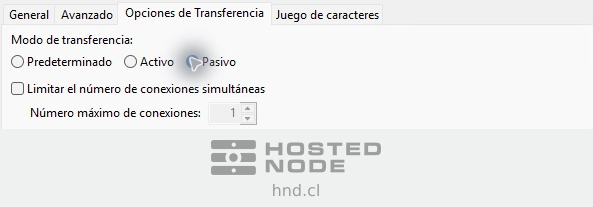
Under Transfer Settings, select Passive. This mode allows the client to initiate the data connections needed to list and transfer files.
A.2. Connect and verify the certificate
Click Connect and enter the password. If you do not want to keep it in memory while the application is running, uncheck Remember password until FileZilla is closed. You may be prompted for it again when a transfer connection starts.
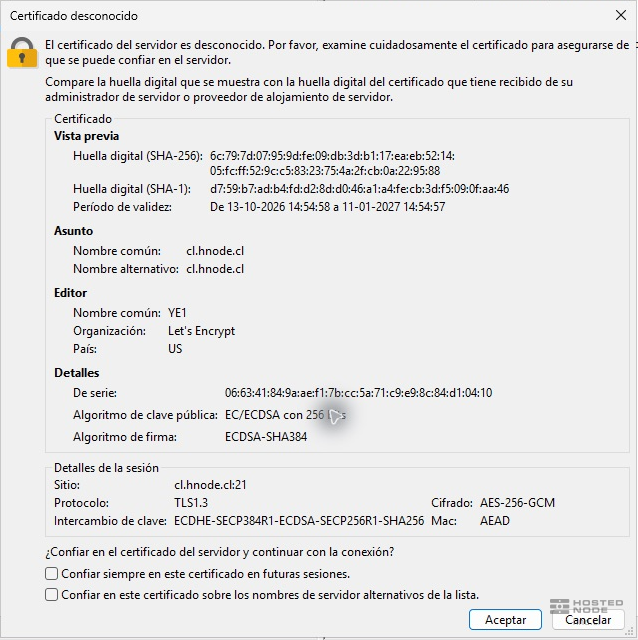
If Unknown certificate appears, check that the server name and validity period match the service. Also verify the fingerprint with support through a trusted channel. If you cannot verify it or the details do not match, cancel and ask support. Do not switch to unencrypted FTP to avoid the warning.
A.3. Upload and download files
The left pane shows your computer and the right pane shows the server. Under Local site, select the source folder, and under Remote site, select the domain and destination directory appropriate for your account.
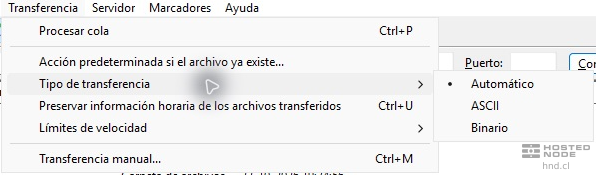
To preserve file contents exactly, select Transfer → Transfer type → Binary. ASCII mode may convert line endings in text files; Binary preserves their bytes.
To upload, select the local file and use Upload in its context menu or drag it to the remote pane. To download, first choose the local destination folder and use Download in the remote file's menu. Check the paths in each pane and any overwrite prompts.

Wait for the queue to finish and check Successful transfers and Failed transfers. When finished, use Server → Disconnect.
Option B: WinSCP
B.1. Configure the FTP connection with TLS

Open WinSCP and select New Site in Login. Labels may appear in English or Spanish depending on the installation. Complete:
File protocol: FTP.
Encryption: TLS/SSL Explicit encryption.
Hostname: the FTP server name.
Port number: the FTP port specified for your service, normally 21.
Username: the full FTP username. Leave Password blank so you are prompted for it when connecting.
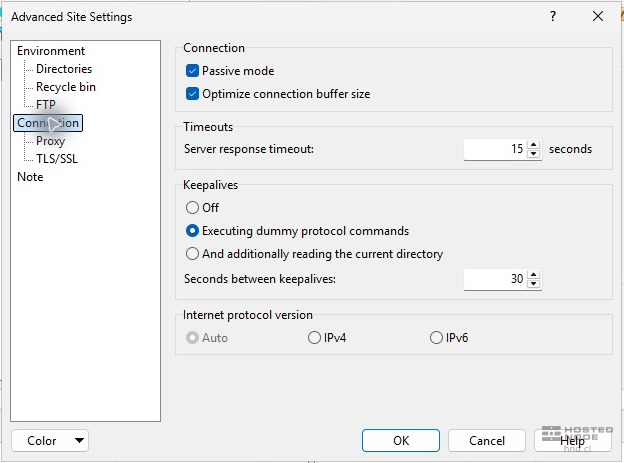
Under Advanced… → Connection, check that Passive mode is selected and confirm with OK. If you save the site using Save, keep the profile without storing the password.
B.2. Connect and transfer
Click Login and enter the password when prompted. If a certificate warning appears, verify the name, validity period, and fingerprint through a trusted channel before continuing. If the certificate is incorrect, cancel and contact support.
In the two-pane view, the left pane corresponds to your computer and the right pane to the server. Open the source and destination folders. To upload, select the local file and click Upload. Check the remote directory and make sure Transfer type shows Binary before confirming with OK.
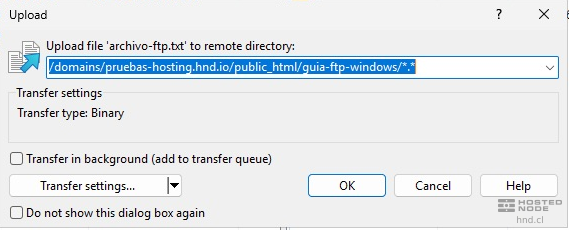
To download, first select the local destination folder and then the remote file. Click Download, check the folder on your computer, and confirm with OK. If a file with the same name already exists, decide whether it should be replaced.
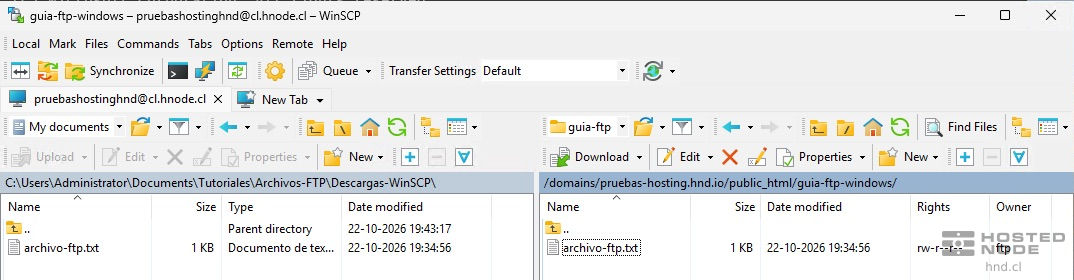
Wait for the operation to finish and check that there are no errors. Close the session tab to disconnect.
If you cannot connect or transfer
Authentication rejected: check the full FTP username and its password. An additional account uses its own credentials.
Connects but does not list folders: check passive mode and review the client's message.
Certificate error: verify the server and validity period; do not disable TLS as a solution.
Permission denied: check the assigned directory and the account's permissions.
Path not found: a restricted FTP account may see a different structure from the main account.
Failed or interrupted transfer: review the message and check the file before considering the copy complete.